Bitmain Antminer S21 XP Hyd. - User Guide
Installation guide
Overview
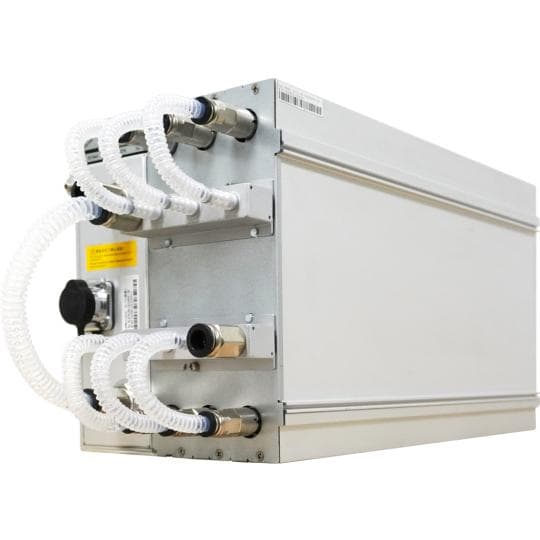
The S21 XP Hyd. server is one of BITMAIN's newest versions. The APW11 power supply is part of the S21 XP Hyd. server. All S21 XP
Hyd. servers are tested and configured before shipping to ensure easy setup.
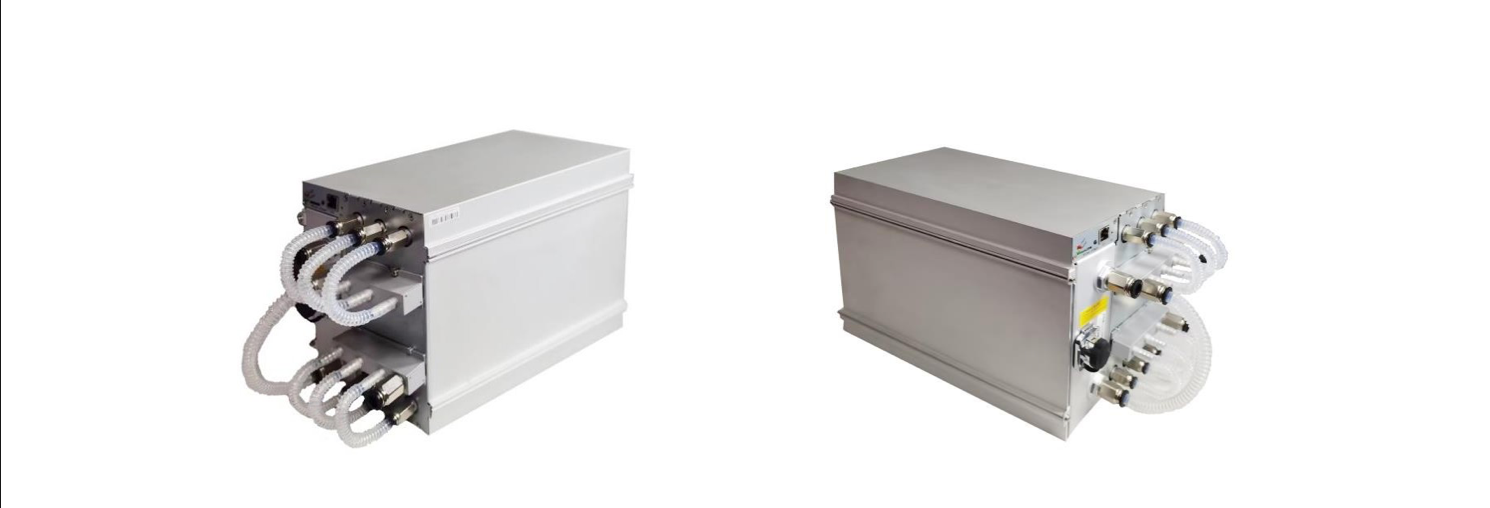
Please refer to the layout above to put your goods into use in case of damage.
The equipment must be connected to a grounded outlet. The outlet must be installed close to the equipment and must
be easily accessible.
Do NOT remove screws and cables tied on the product.
Please note that the actual server shall prevail.
There must be an external dedicated surge protection device compliant with IEC/EN 61643-11, either in front of the power supply
or outside the end system (in a separate distribution box or as part of the building installation).
Do not plug in or unplug the device while it is powered on.
The outer side of the power supply must have a disconnect device that can switch off L1&L2&L3 simultaneously.
The server must be restarted manually when the hashrate is abnormal.
The S21 XP Hyd. server must be used together with the ANTSPACE HK3. Please click here for more details about the ANTSPACE HK3.
S21 XP Hyd. Server Components
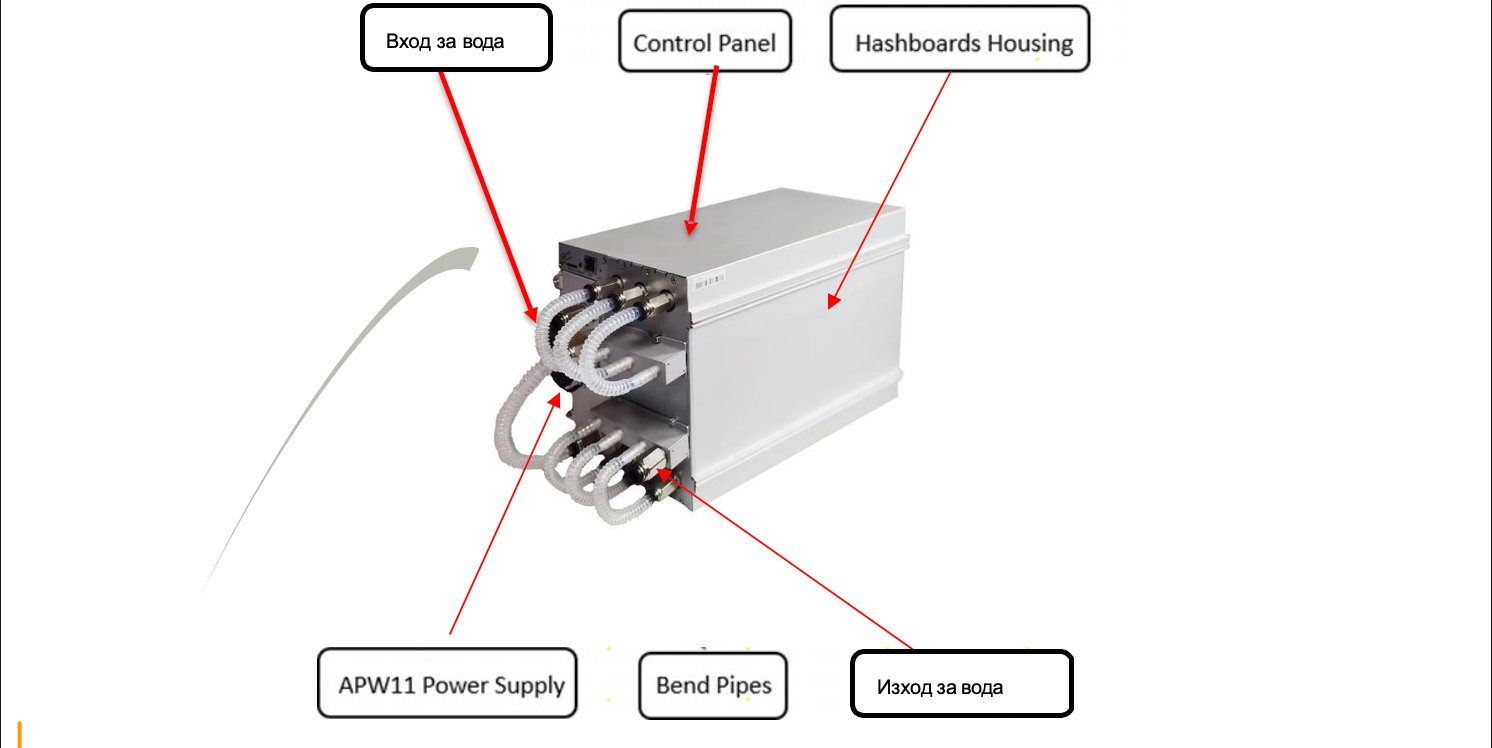
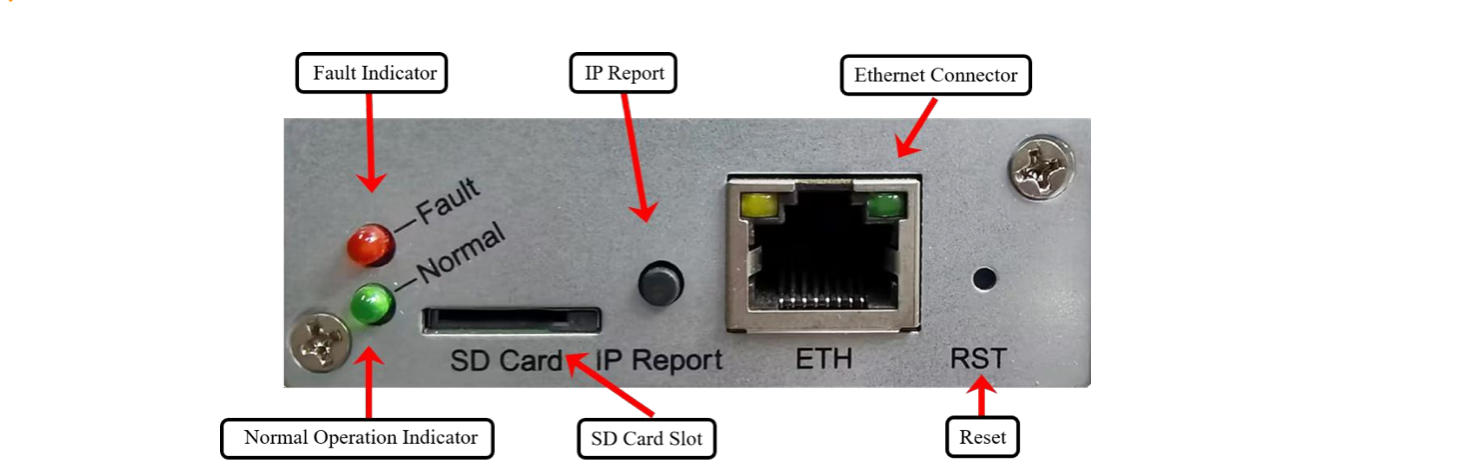
The main components and the control panel of the S21 XP Hyd. servers are shown in the following figure:
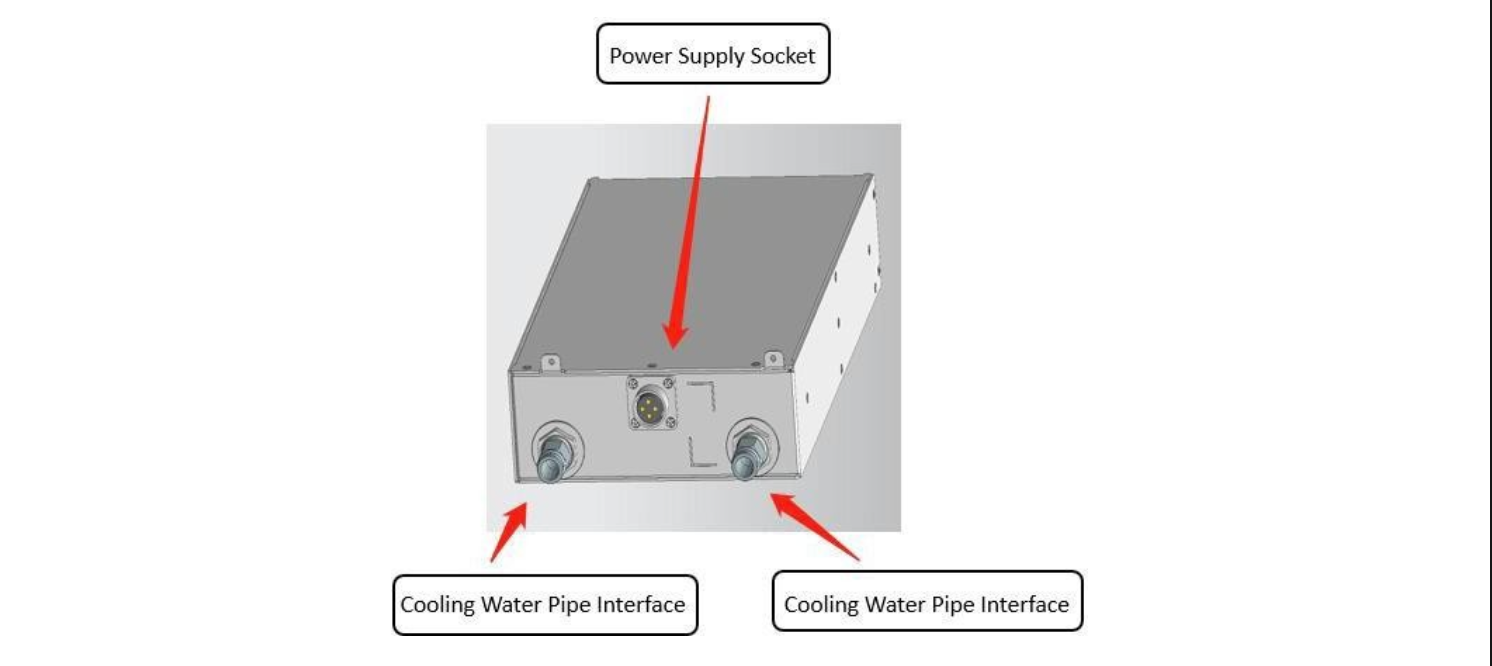
APW11 power supply:
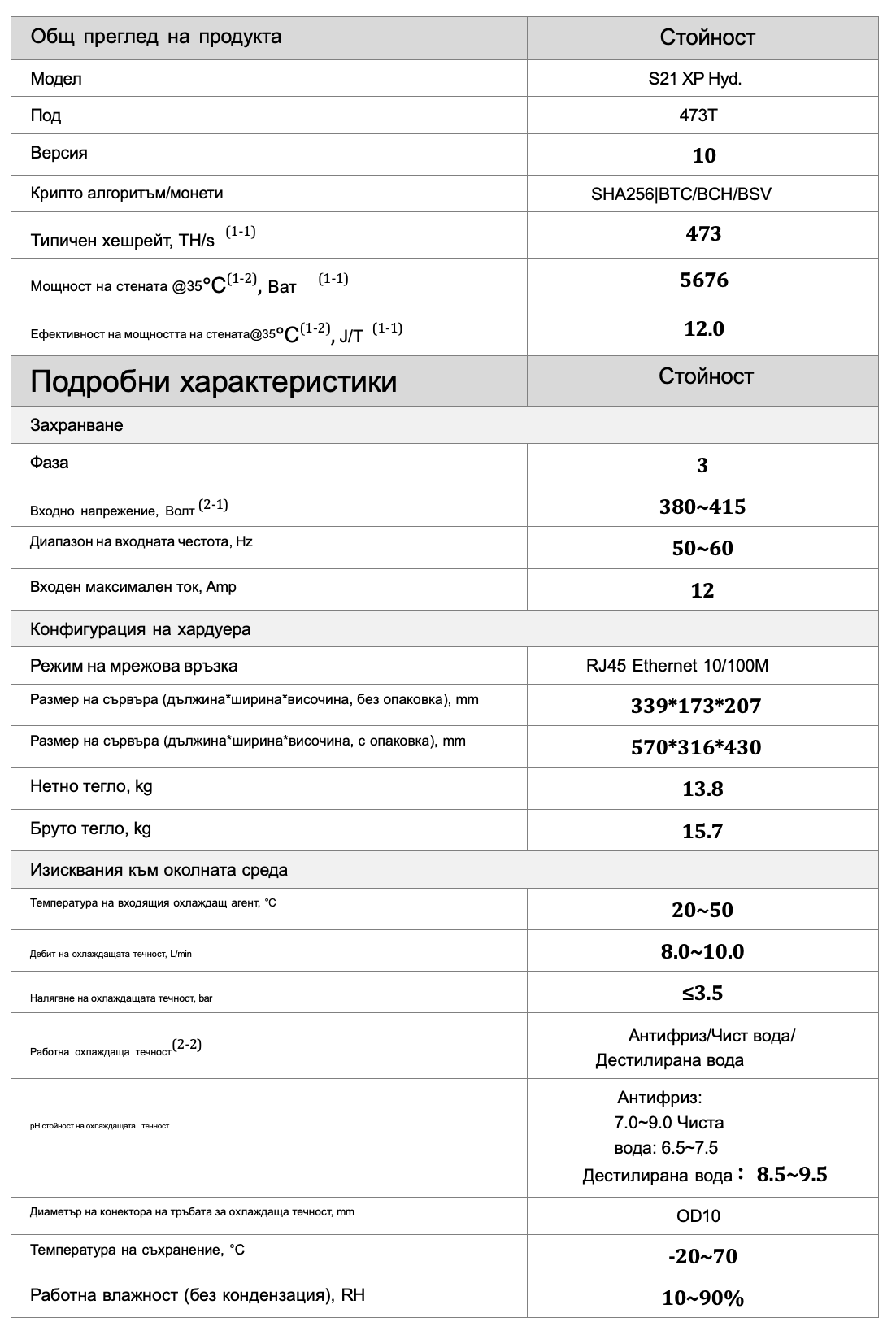
Specification
Setting up the server
To set up the server:
- Go to the following site:
https://shop.BITMAIN.com/support.htm?pid=00720160906053730999PVD2K0vz063
- Download the following file: IPReporter.zip.
- Unzip the file.
- Right-click IPReporter.exe and run it as an administrator.
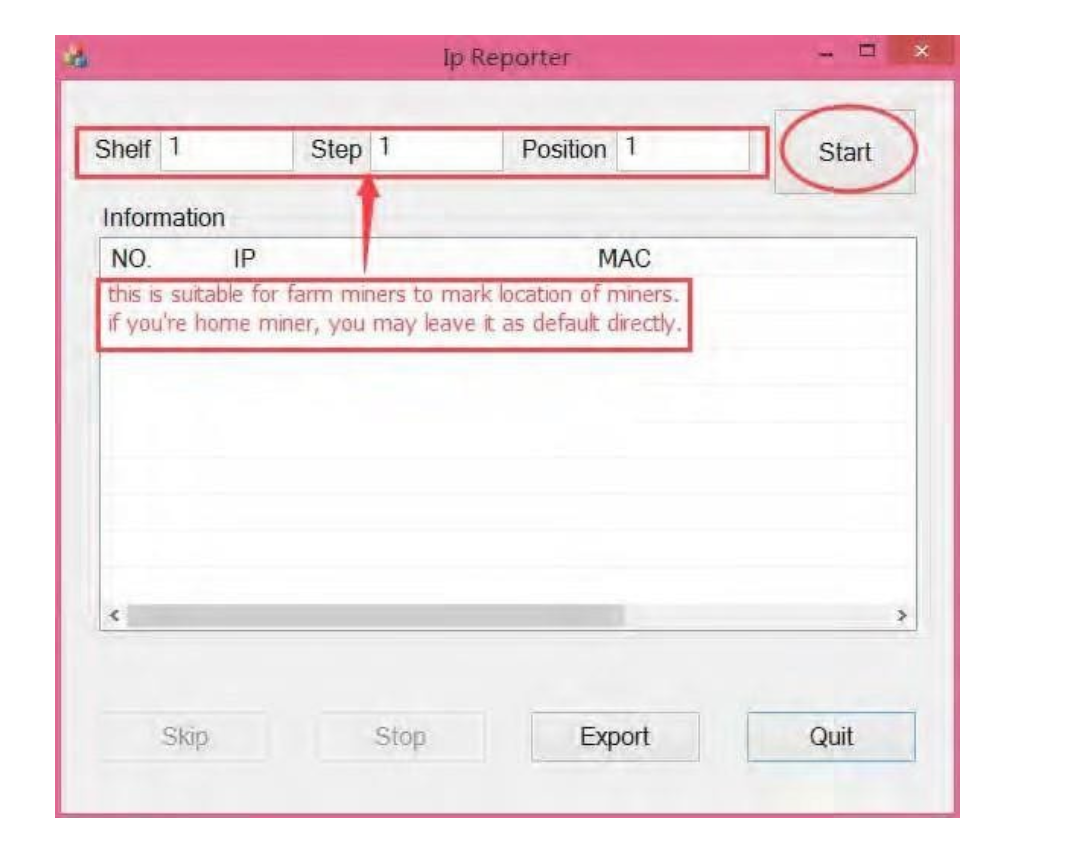
- Select one of the following options:
- Shelf, Step, Position – suitable for farm servers, to mark the location of the servers.
- Default – suitable for home servers.
Click Start.
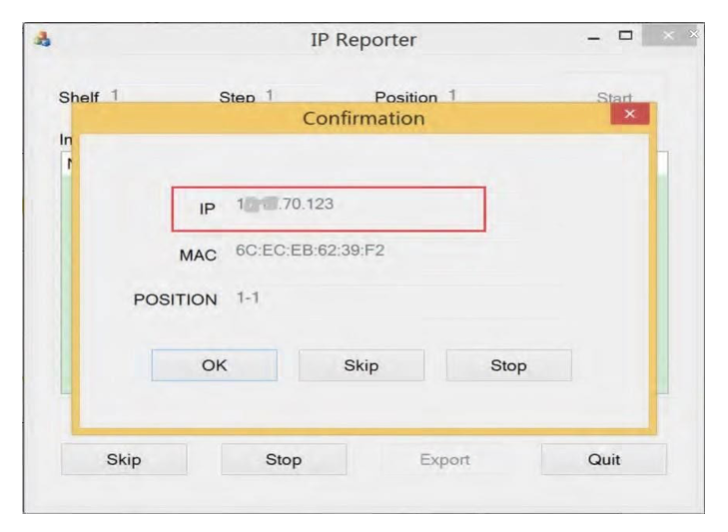
- On the control panel, click the IP Report button. Hold it until it beeps (about 5 seconds).
The IP address will be shown in a window on your computer screen.
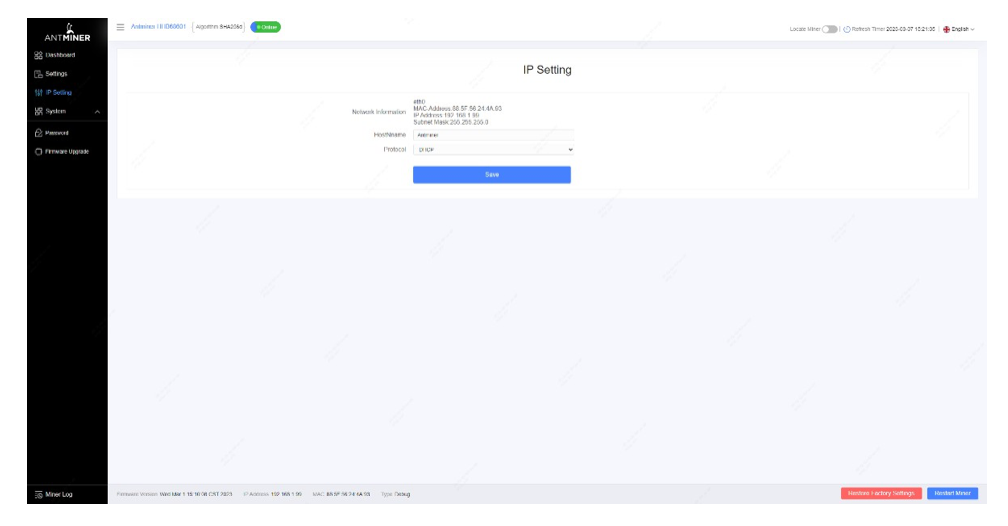
In your web browser, enter the IP address provided.
Proceed to log in using root for both the username and the password.
In the Protocol section you can set a static IP address (optional).
Enter the IP address, the subnet mask, the gateway and the DNS server.
Click “Save”.
Click https://support.BITMAIN.com/hc/en-us/articles/360018950053 to learn more about the gateway and the DNS server.
Configuring the server
Pool setup
To configure the server:
Click Settings, as shown below
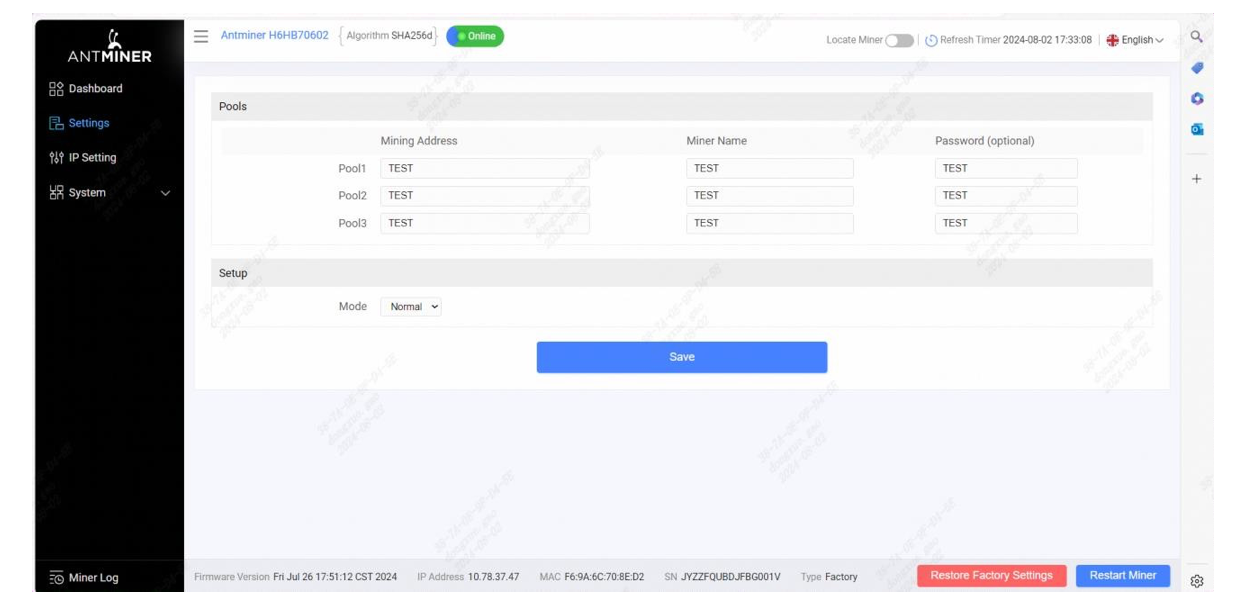
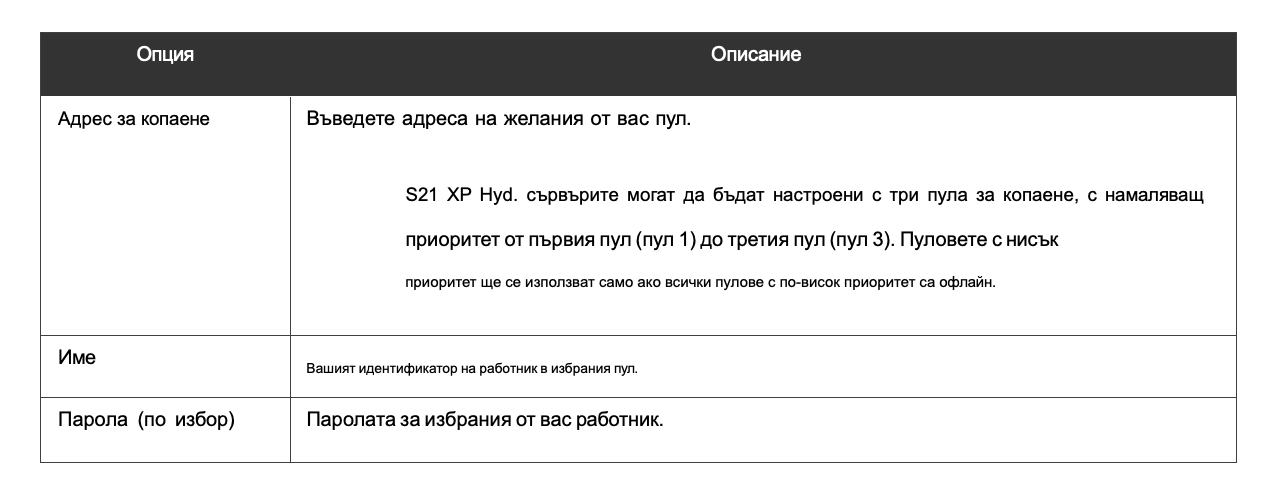
Set the options according to the following table
Monitoring your server
To check the working status of your server (taking the S21 XP Hyd. 473T as an example):
Click the dashboard marked below to check the status of the server.
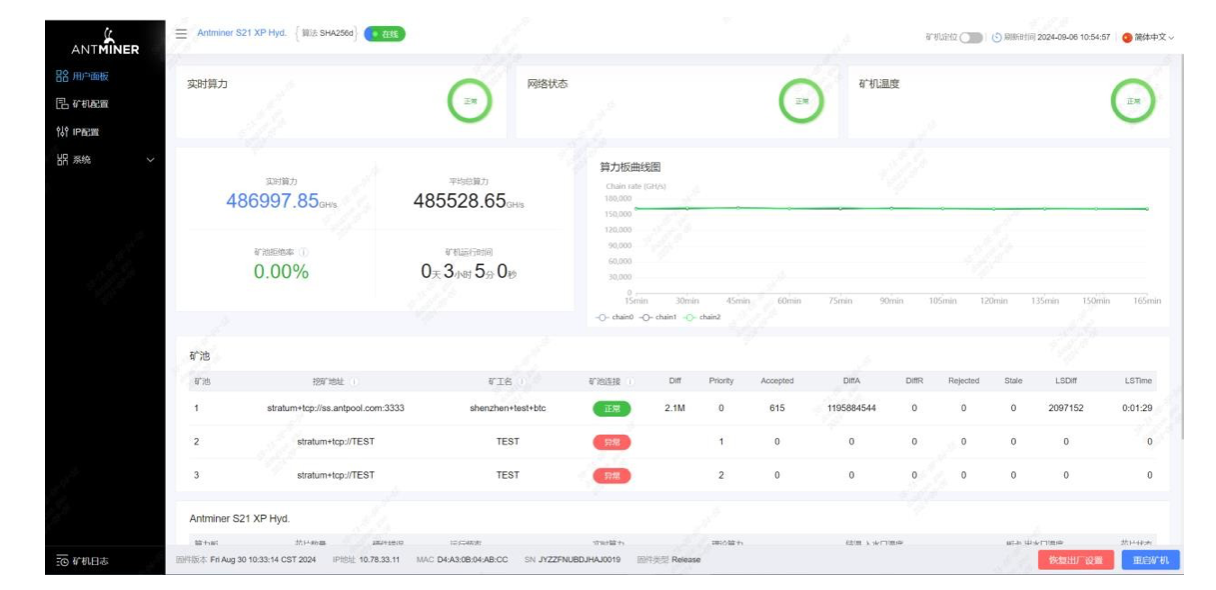
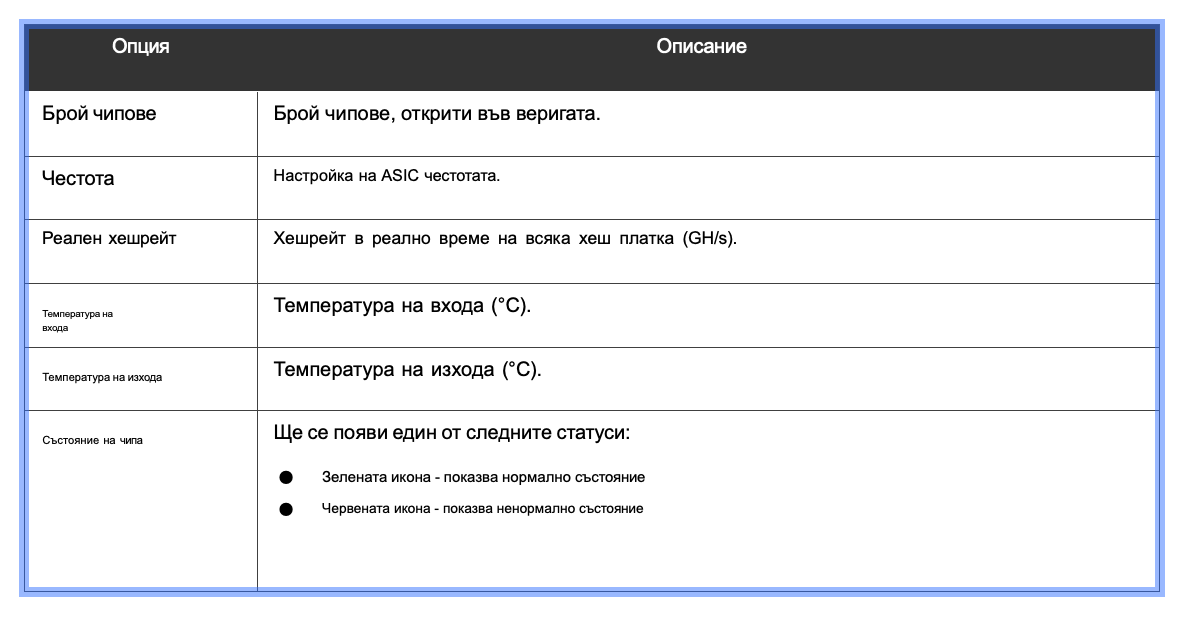
Note: The frequency of the S21 XP Hyd. server is fixed at 495 MHz. The firmware will stop working when
the temperature (PCB) reaches 80℃ or the water temperature is higher than 50 ℃ or lower than 20℃,
an error message “Fatal Error: Temperature is too high!” will appear at the bottom of the Kernel log page.
Checking your firmware version
To check your firmware version:
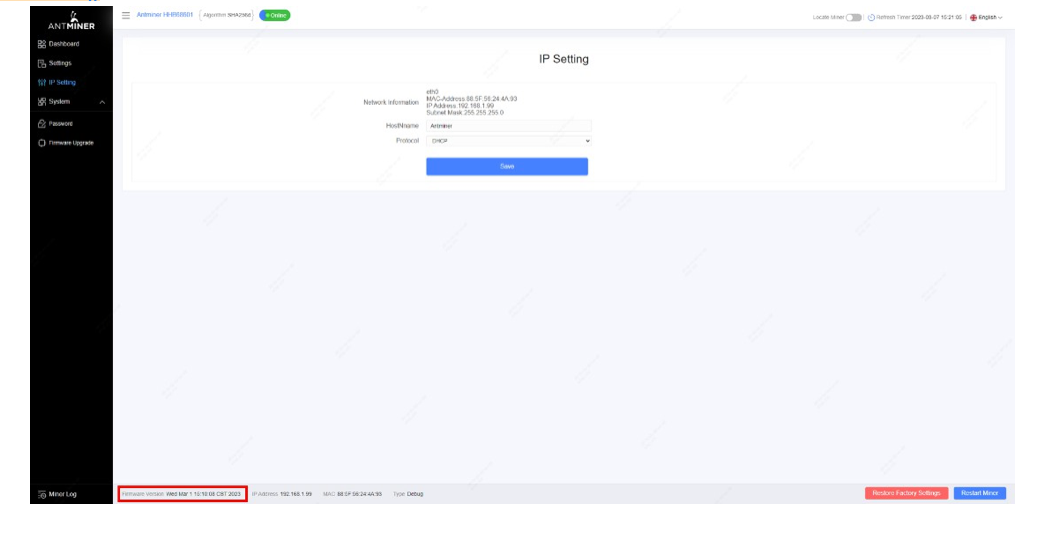
Enter the backstage of your server and find the firmware version at the bottom.
The file system version shows the date of the firmware your server uses. In the example below the server uses firmware
version 20230301.
Upgrading your system
Make sure the S21 XP Hyd. server stays powered on throughout the upgrade process. If the power fails before the upgrade is complete, you will have to return it to BITMAIN for repair.
To upgrade the server firmware:
In System, click Firmware Upgrade .
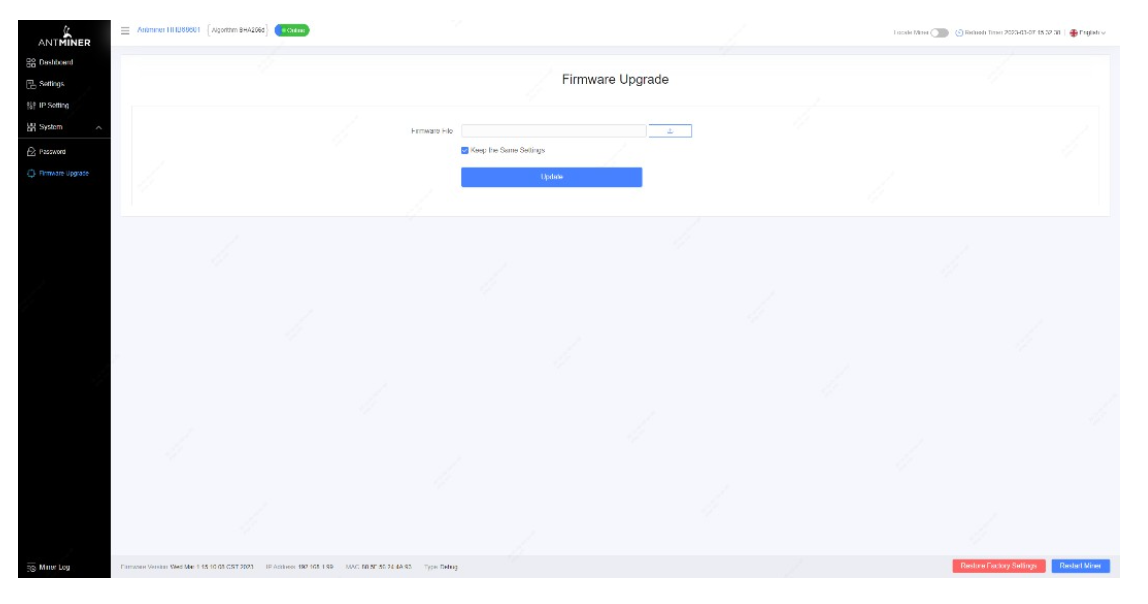
On Keep Settings :
- Select “keep settings” to keep your current settings (default).
- Uncheck “keep settings” to return the server to its default settings.
Click the button
and navigate to the upgrade file. Select the upgrade file, then click Update .
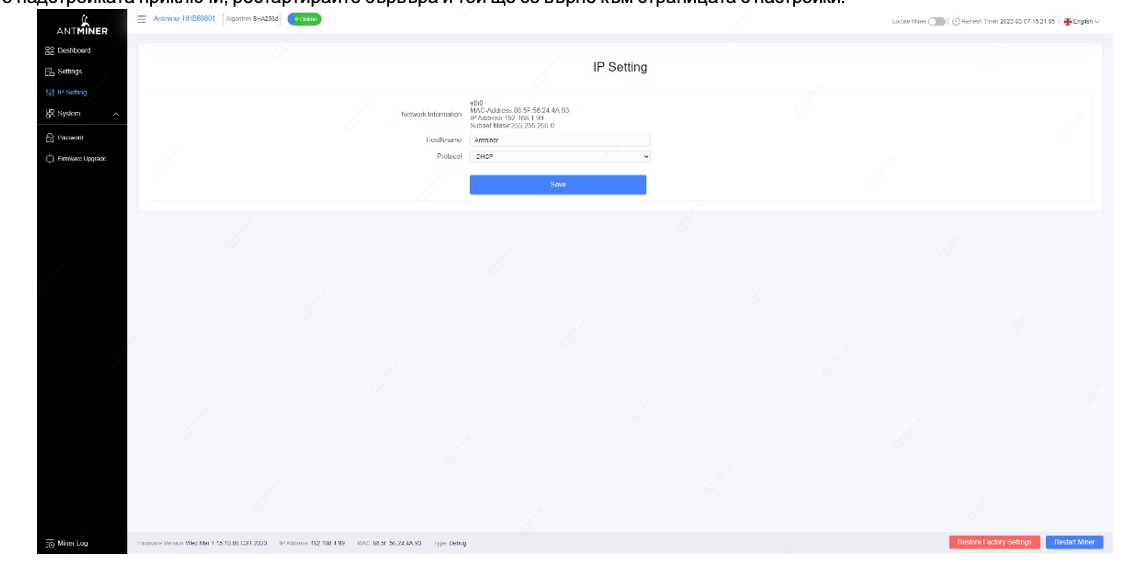
When the upgrade is complete, restart the server and it will return to the settings page.
Click one of the following options:
- Restart - to restart the server with the new firmware.
- Roll Back - to keep mining with the current firmware. The server will load the new firmware the next time it is restarted.
Changing your password
To change your login password:
In System, click the Password tab.
Set your new password, then click Save.

Restoring the initial settings
To restore your initial settings
Turn on the server and let it run for 5 minutes.
On the control panel, press and hold the Reset button for 10 seconds.
Resetting your server will restart it and restore its default settings. The red LED will automatically blink once every 15
seconds if the reset was successful.
Environmental requirements
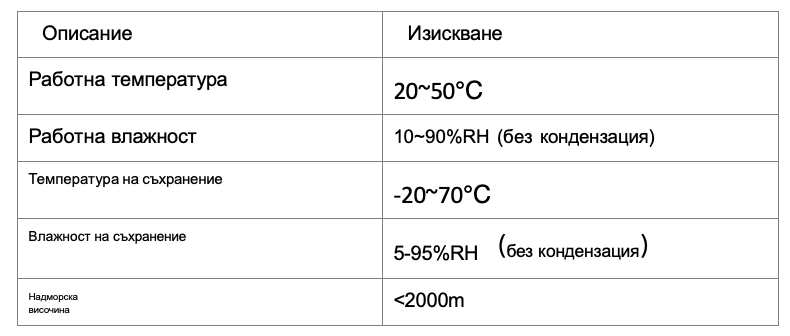
Please use your server in accordance with the following requirements
Basic environmental requirements:
Climatic conditions:
Site requirements for the server room:
Please keep the server room away from industrial pollution sources:
For heavy pollution sources such as smelters and coal mines, the distance must be more than 5 km.
For moderate pollution sources such as chemical industries, rubber and electroplating industries, the distance must be more than
3.7 km.
For light pollution sources such as food factories and leather processing plants, the distance must be more than 2 km.
If this is unavoidable, the site must be chosen in the perennial wind direction of the pollution source.
Please do not choose a location within 3.7 km of the sea shore or a salt lake. If this is unavoidable, it must be built as airtight as possible,
equipped with air conditioning for cooling.
Electromagnetic environmental conditions:
Please keep your site away from transformers, high-voltage cables, transmission lines and high-current equipment, for example,
there must be no high-power AC transformers (>10KA) within 20 meters and no high-voltage power lines within 50 meters. Please keep your site away from high-power radio transmitters, for example, there must be no high-power radio transmitters (>1500W) within 100 meters.
Other environmental requirements:
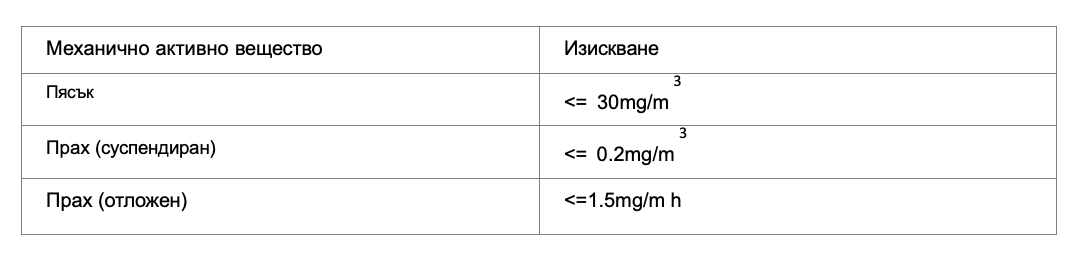
The server room must be free of explosive, conductive, magnetically conductive and corrosive dust. The requirements for
mechanically active substances are shown below:
Requirements for mechanically active substances