JASMINER X16-Q User Guide
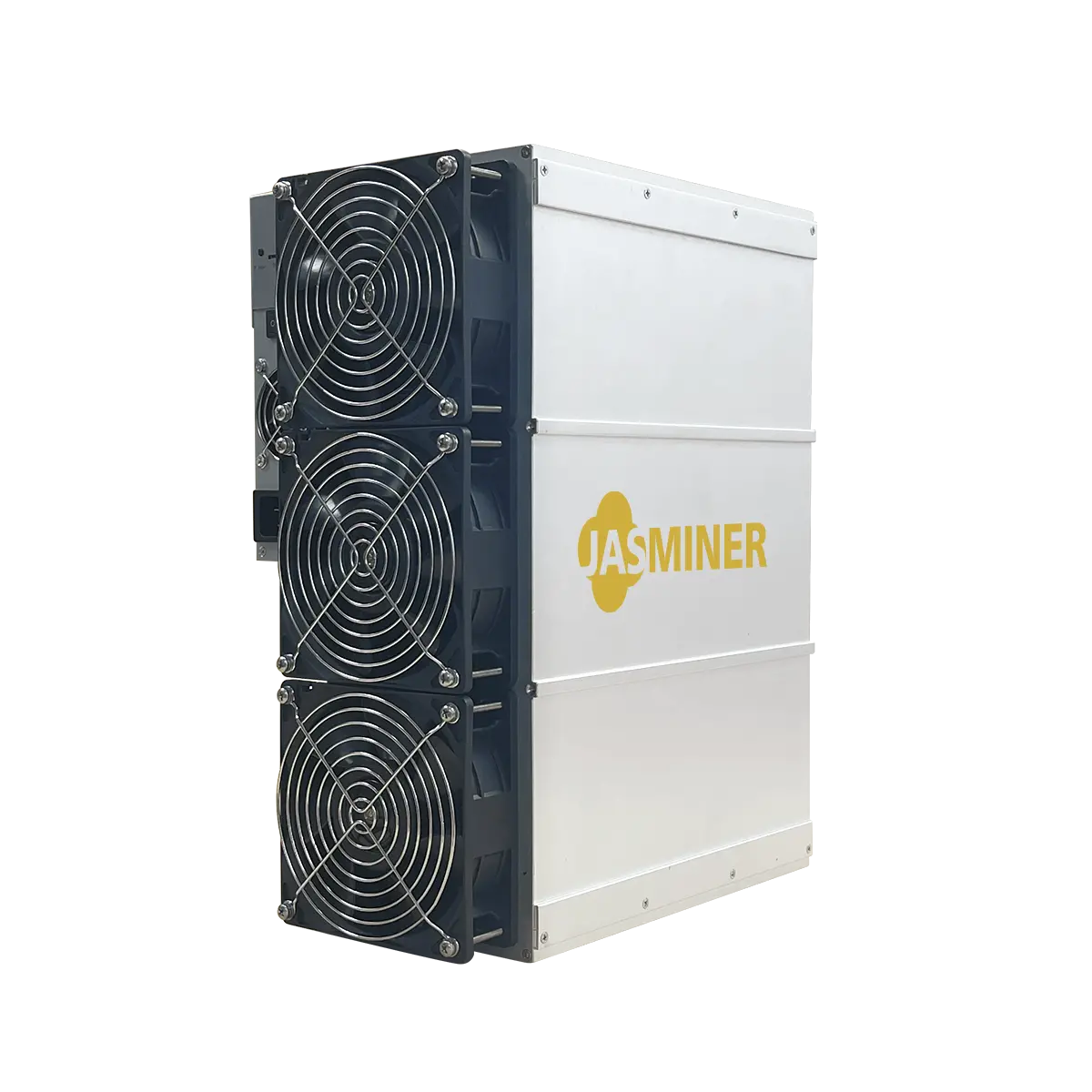
JASMINER X16-Q
User guide for a quiet, high-performance miner.
Product overview
A quiet server with high throughput (model: JASMINER X16-Q), developed by Sunlune Technology development (Beijing) Co., Ltd., which is a high-performance server. Based on the independently developed JASMINER X16 high-ASIC for high-throughput computing. The integrated memory chip and computing structure deliver a combination of memory and computation that meets the requirements for memory capacity and increased access bandwidth, breaking through the computing power bottlenecks of traditional computer architecture, while providing sufficient computing power, reduced energy consumption and a profile designed with a silent fan; with the help of the integrated architecture and ultra-high throughput it is broadly applicable to blockchain network PoW algorithms such as ETCHASH and ETHASH, comes in a standard 3U server form, is suitable for IDC server rooms, households and other scenarios and brings customers a good return on investment.
The quiet server with high throughput has excellent computing performance, low energy consumption, a simple but effective IO expansion capability and extremely high operational stability, so that it meets the requirements of all the different types of customers.

Check before use
After unpacking the new machine, please check whether
the equipment casing is deformed or the interface is damaged. If there is
any damage at all, please contact the service centre.
Check the machine for unusual noise; please do not switch on the power and contact the service centre if there is a metallic sound of metal knocking together, or unscrewed or loose screws.
This machine must not be connected to a router or switch with a POE function;
Do not stack the machine or cover it with other objects, so that it stays cool;
Please operate the machine in the recommended working environment (operating temperature: 0-40°C, operating humidity:
5%RH~95%RH without condensation), so that the normal operation or performance of the machine is not affected;
Watch out for dust and foreign objects, so that they do not corrode
the motherboard and leave the device unable to work properly;
Please do not modify the machine on your own; any resulting damage to the machine is not covered by the warranty.
Equipment

Attention:
Please position the machine according to the layout shown above; do not place the machine in an enclosed space to operate;
For your safety it is forbidden to remove any screws or fasteners on the product;
This machine generates heat while running; please avoid touching
the casing during operation.
Equipment specification
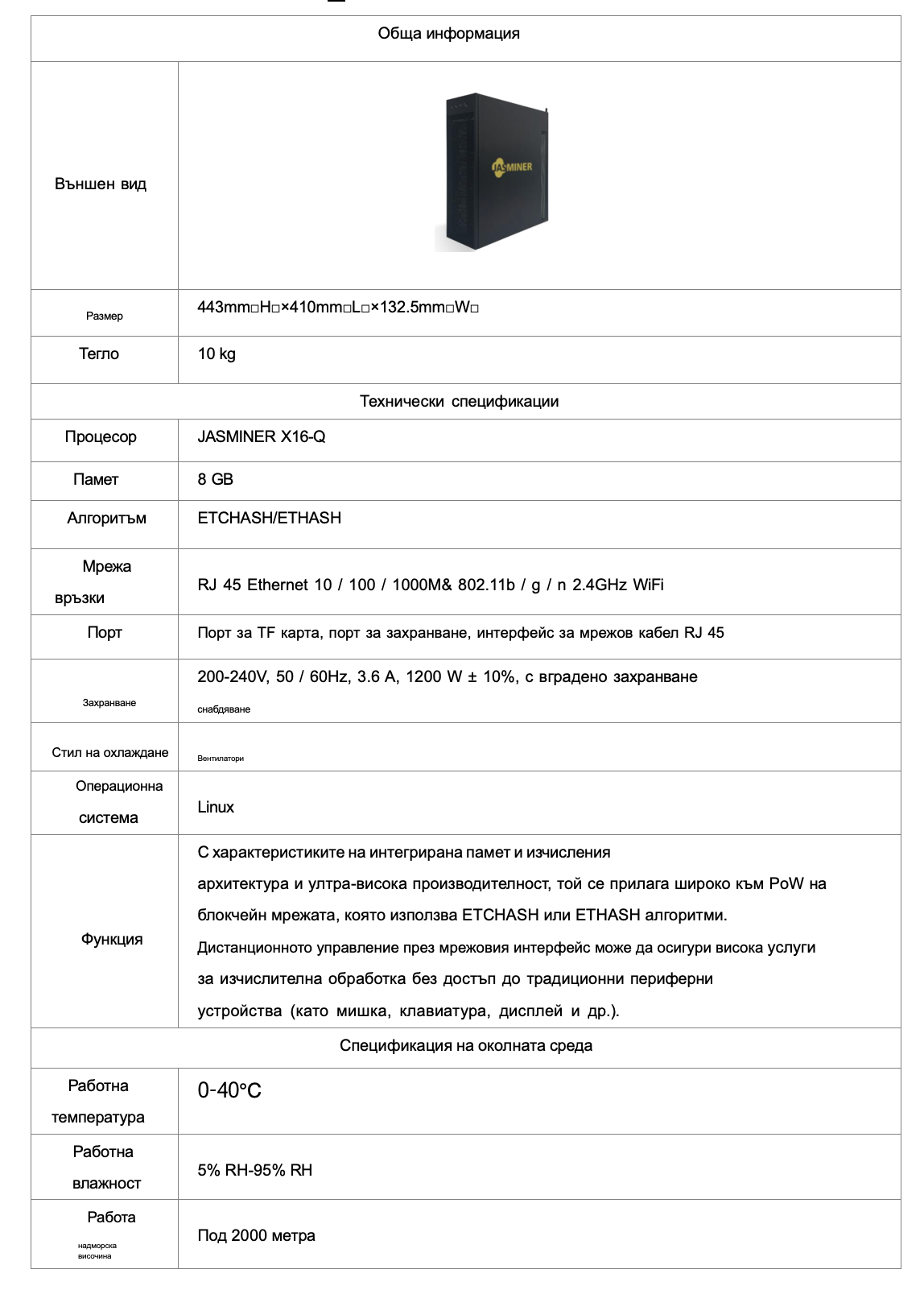
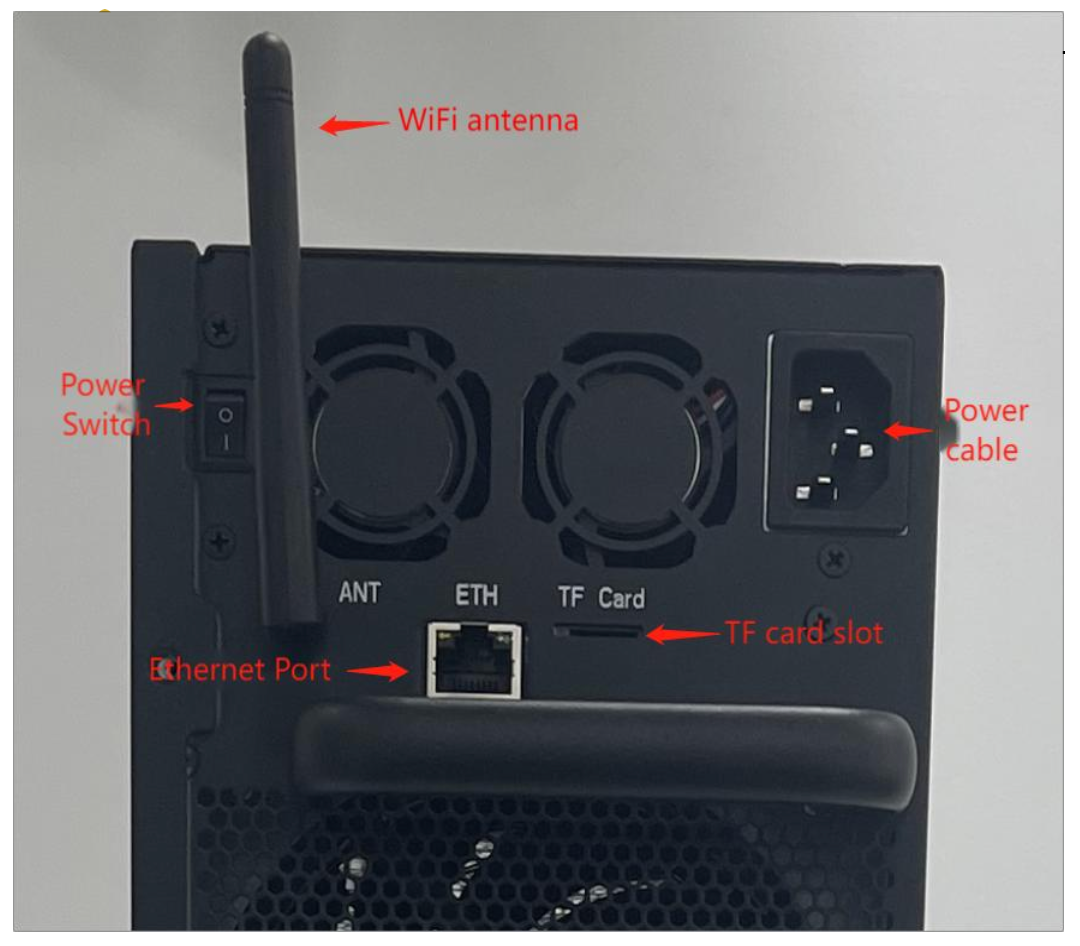
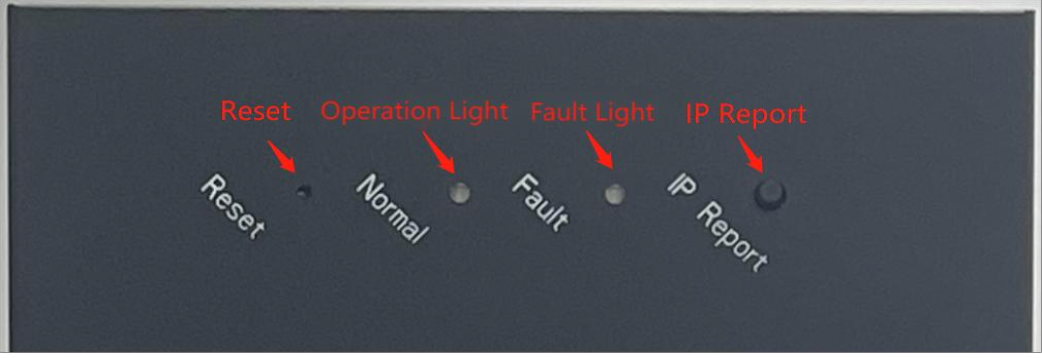
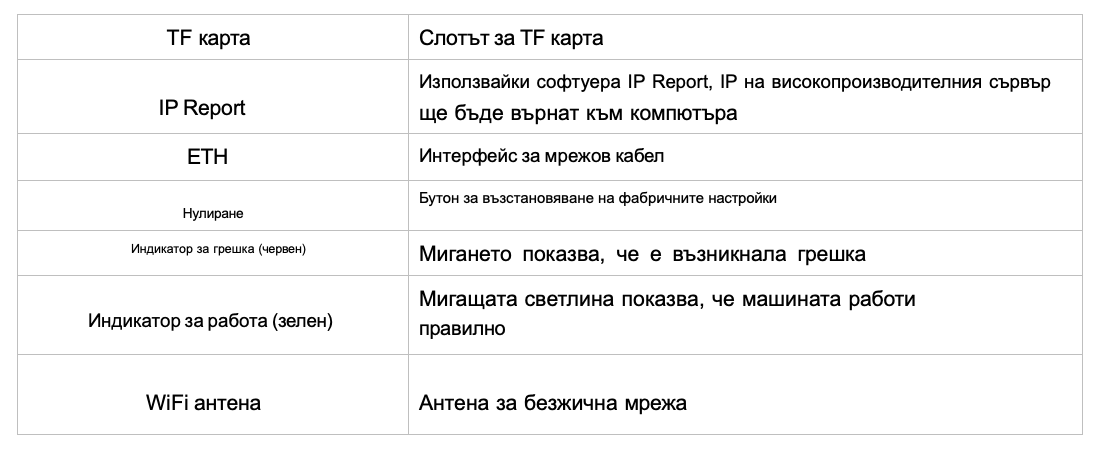
Interface and description
Use and setup
Cabling and check
Connecting a network cable: insert an RJ 45 crystal head into the
Ethernet port (marked ETH on the back of the machine); mind the orientation when plugging the cable in and please seat the crystal head fully in place;
B) Connecting a power cable: Please connect the power supply to 120V-240V AC so that it works properly;
C) WiFi connection: Please connect the WiFi antenna to the corresponding interface on the machine.
Configuring the machine
Configure the machine with the JASMINER IP batch management software
Download the IP batch management software from the following path:
JASMINER website□support□Installation□guide and firmware□other
□software and firmware
Install the jasminer program (IP batch management software) on
Windows OS, double-click to start it, and note that the computer must be
on the same network segment as the machine;
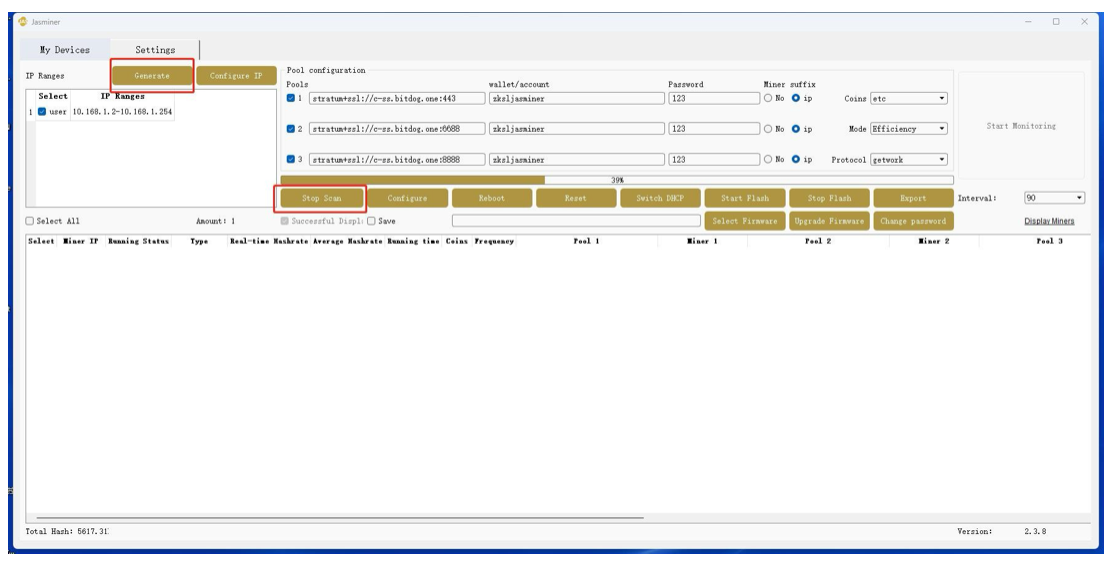
After a successful installation see the figure below, click "generate" □ "scan" in the software interface to scan for the machine's IP address; the corresponding information will appear automatically once the scan finishes;
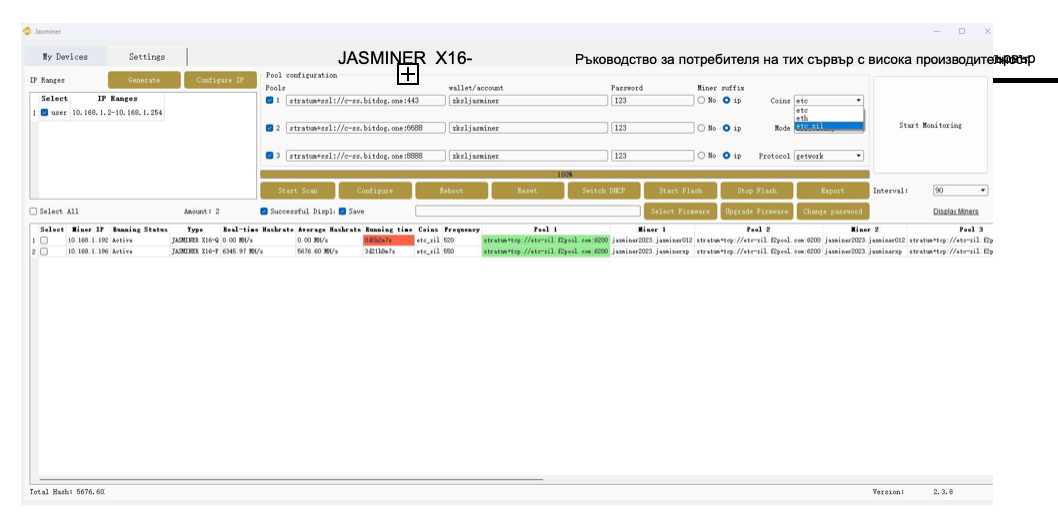
Check whether the machine needs to be configured
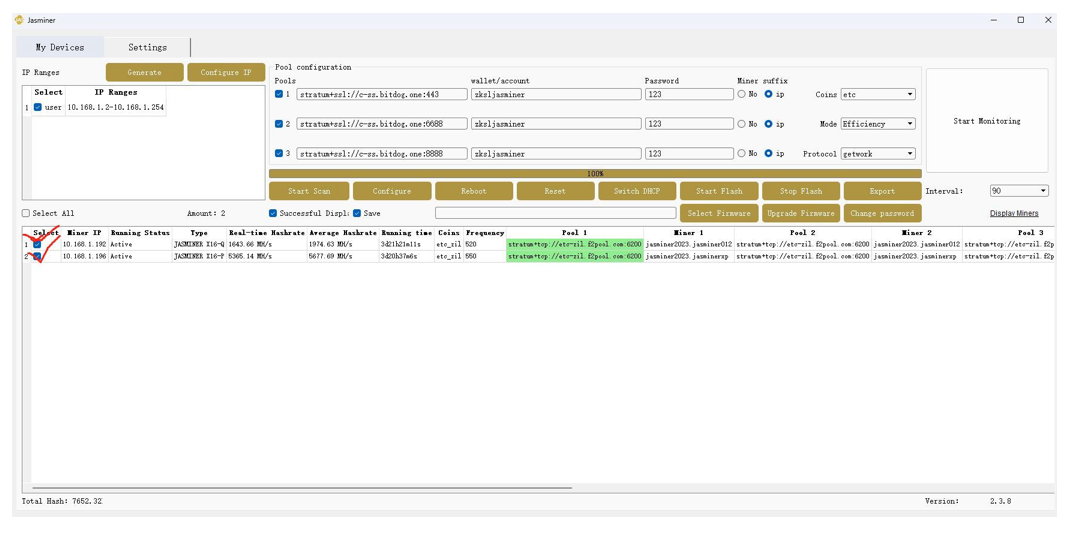
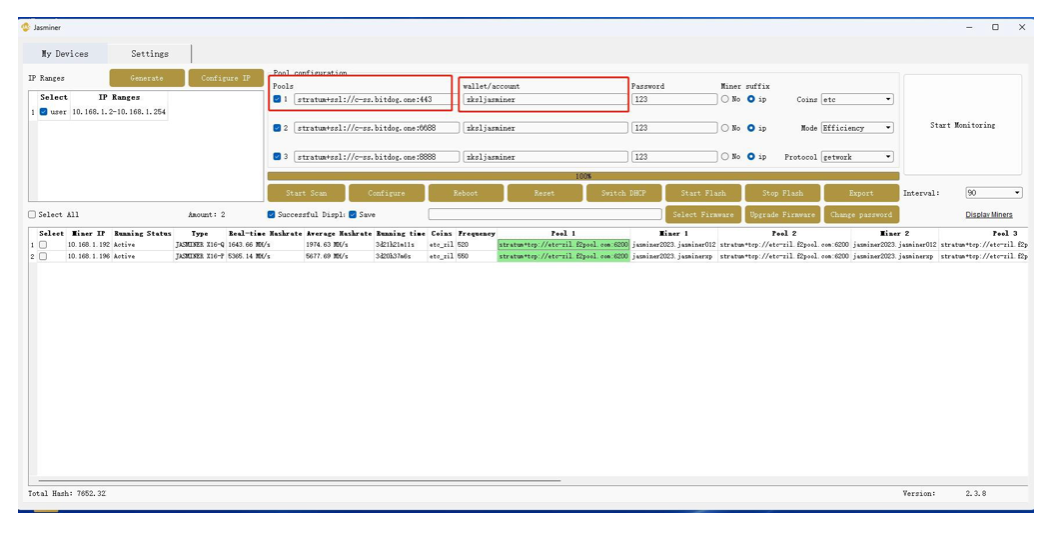
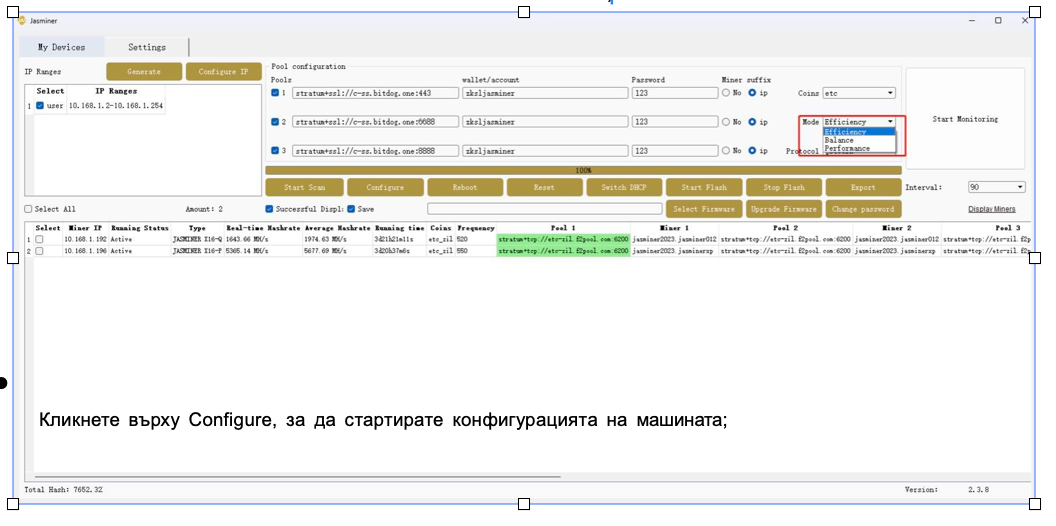
Copy and paste the mining pool address you received into Pools, and then copy and paste the sub-account (worker) into the wallet / account (if you choose ETC + ZIL dual mining, please take the dual mining address from your mining pool)
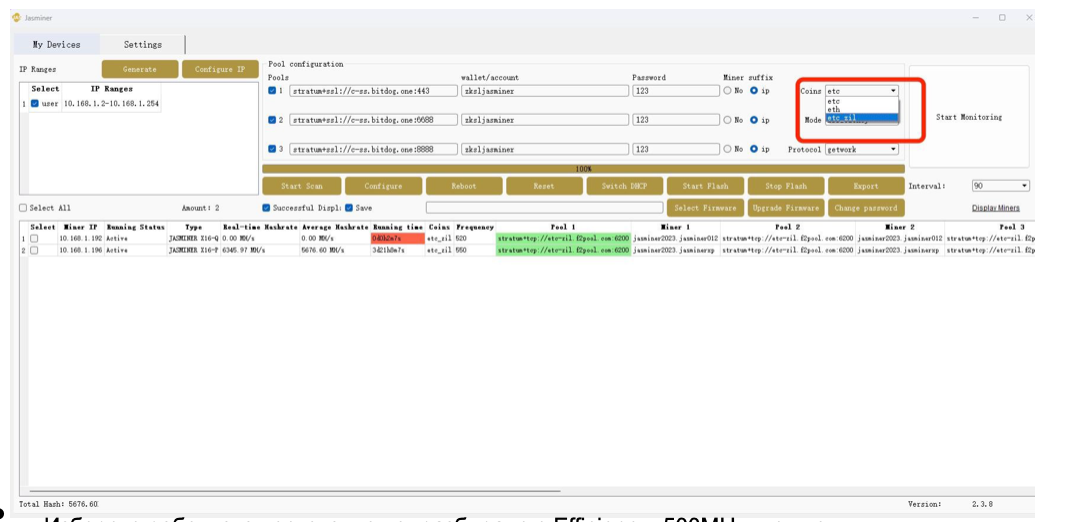
For single mining of ETC, select the ETC algorithm; for dual mining select ETC + ZIL dual-mining (note that the address entered earlier and the algorithm choice must be
the same);
Viewing the hashrate
Once the machine has been running for about 10 minutes, you can see the corresponding
hashrate information.
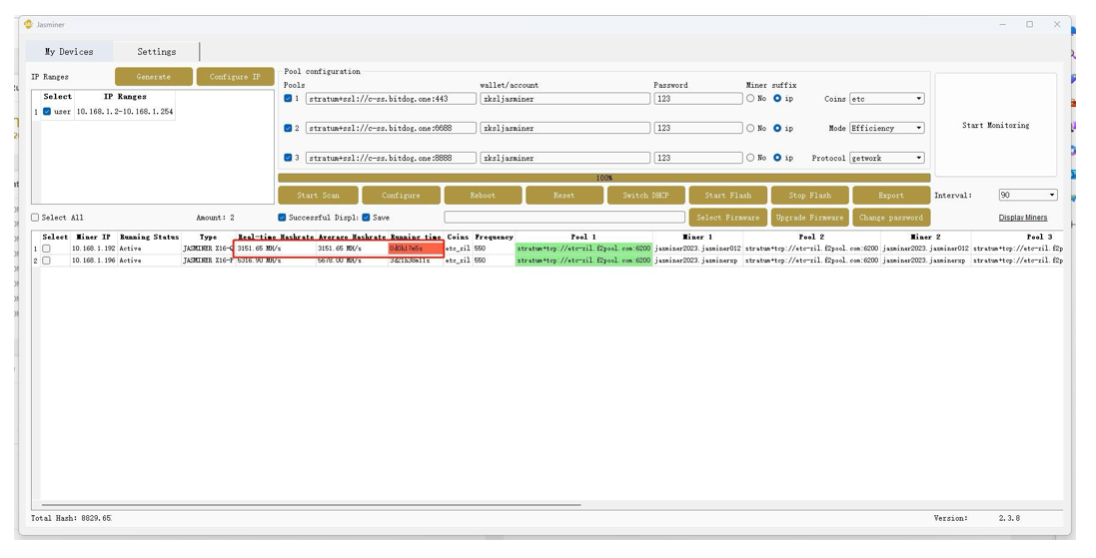
The configuration of this high-performance server is complete and the machine is running properly.
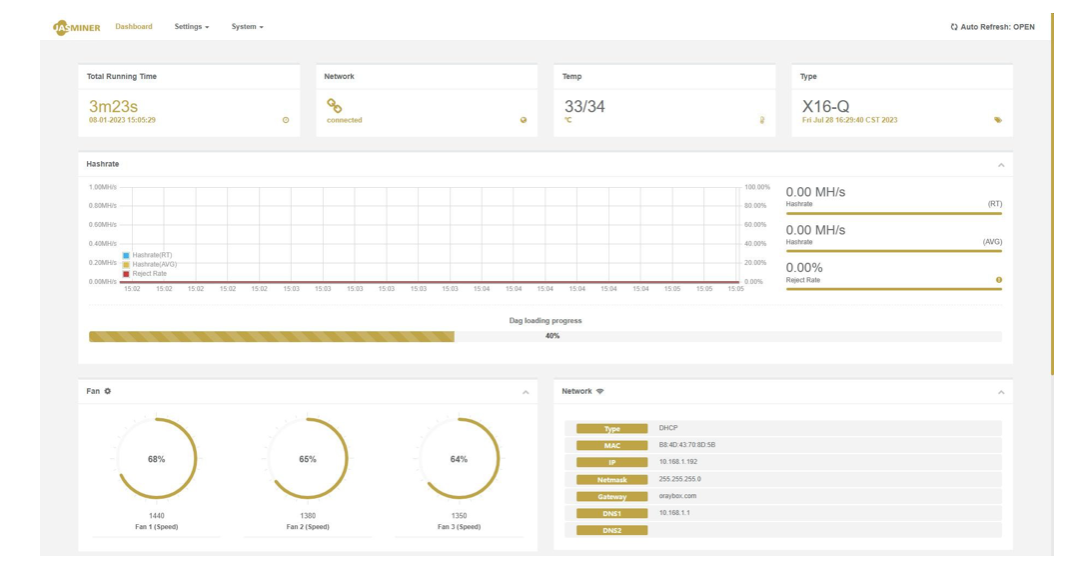
Other settings: double-click the device in the batch management software to open
the web page, where you can change and configure it
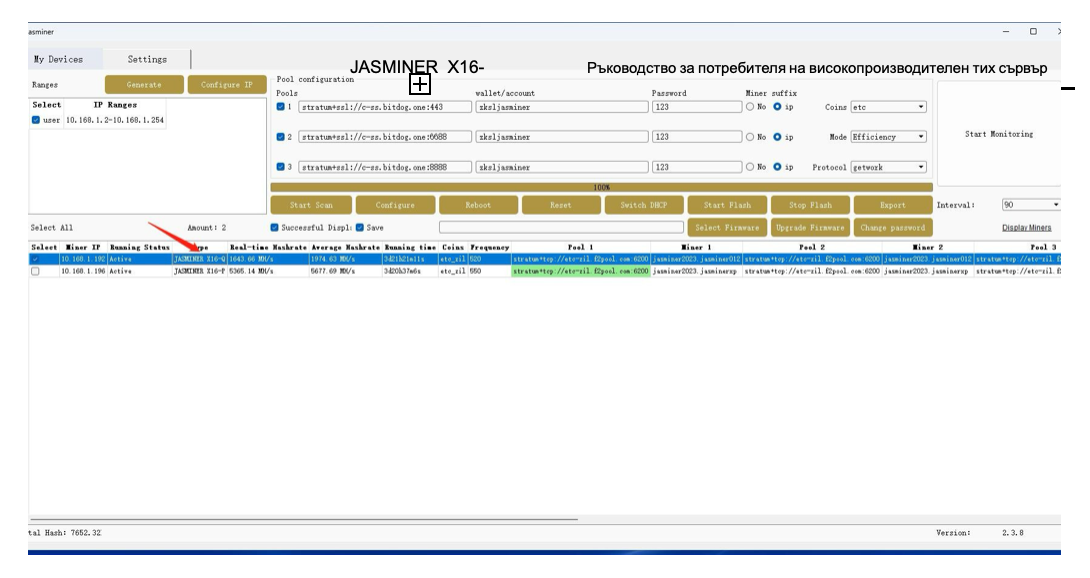
* You have already set all the parameters; if you want to know more about the setup, you can carry on reading points 4 and 5.
Configuring the high-performance server from the Backend Console without the batch management software
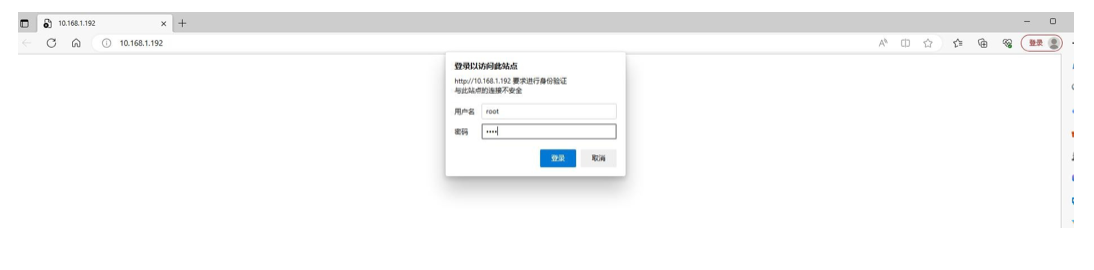
Enter the machine's IP address in any web browser and press the Enter key to open the machine's Backend Console.
User name: root
Password: root
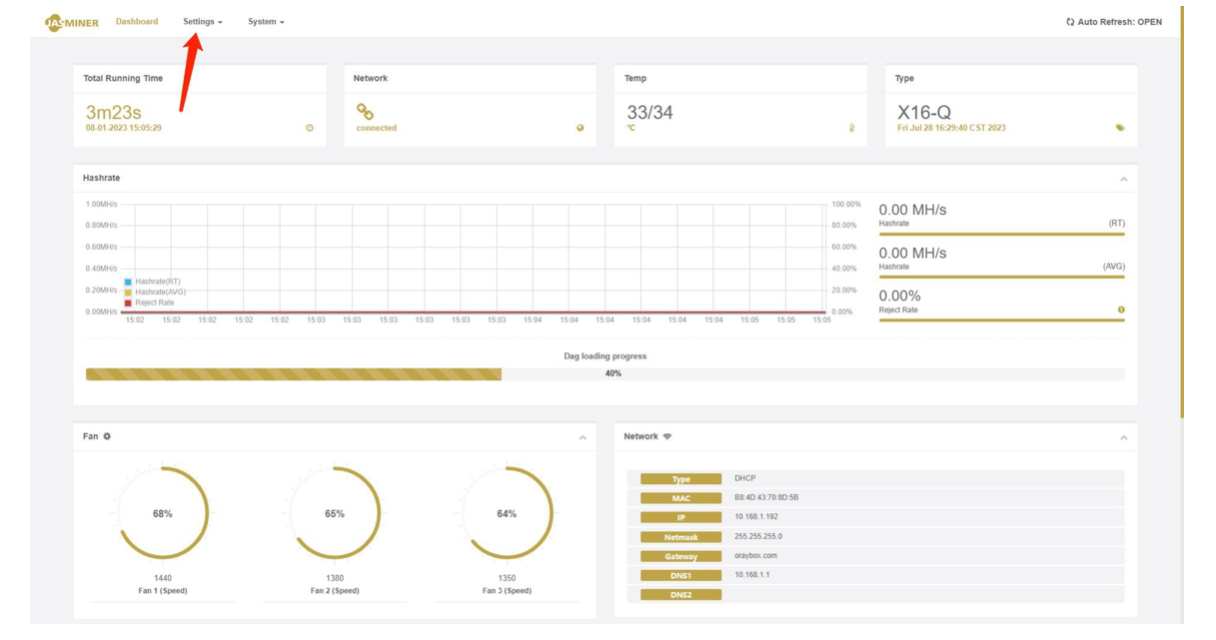
Go to the "Setings→Miner" configuration interface to change
the mining settings, and let the machine start delivering hashrate.
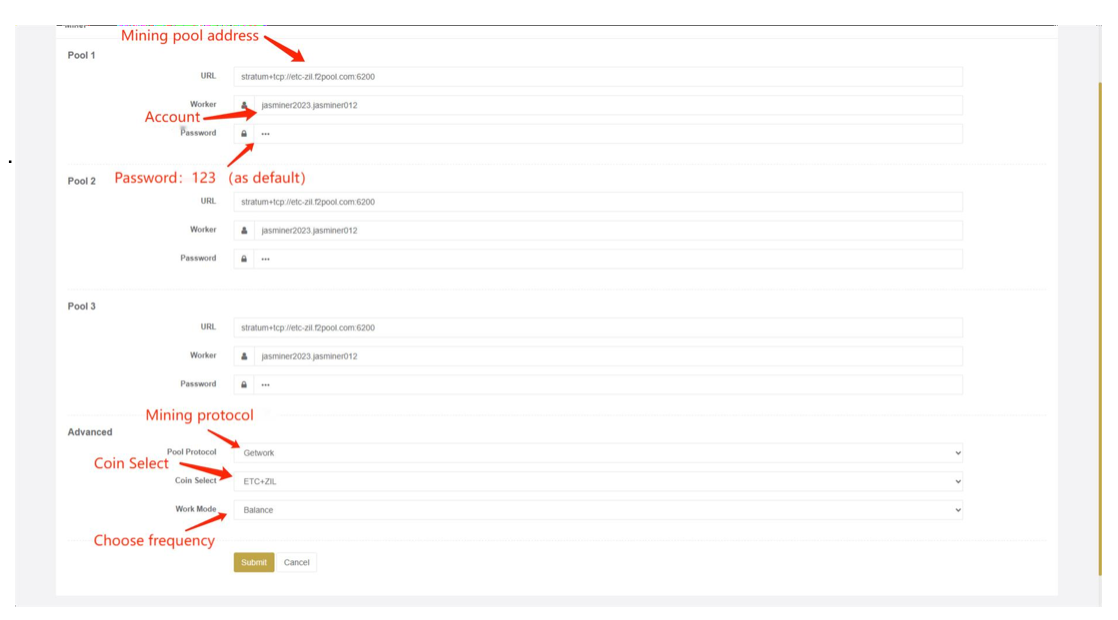
Enter the preferred and two alternative mining addresses, account number and password, and refer to the mining tutorial;
Select the algorithm; this machine also supports two algorithms (ETC/ ETH), the default being the ETH algorithm;
Once the selection is complete, click "UPDATE" to submit, and
the configuration is finished.
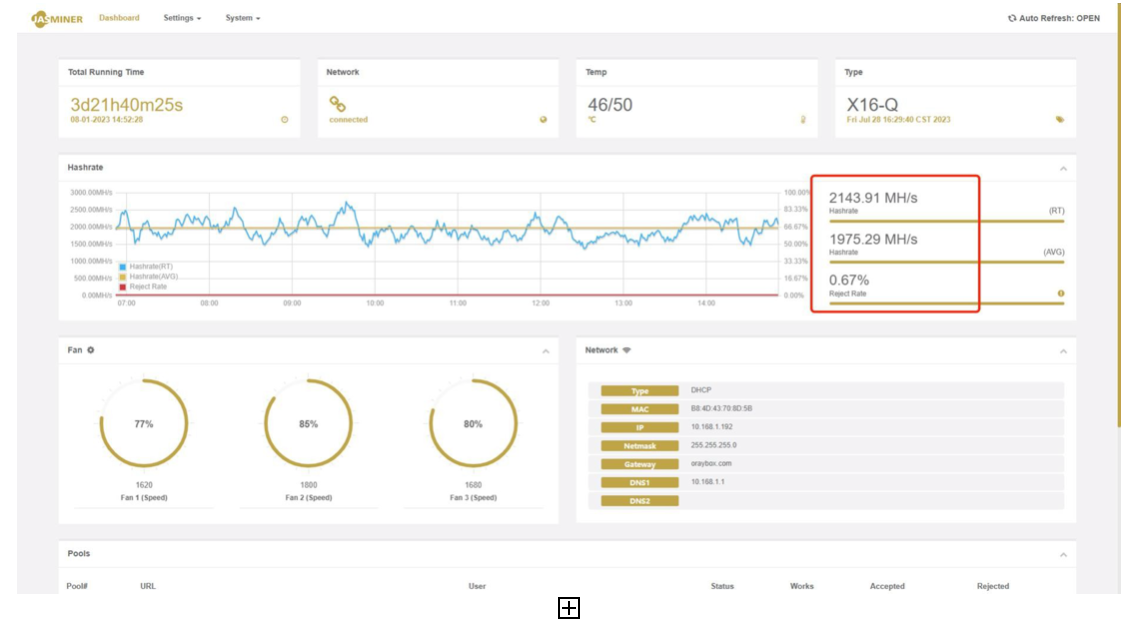
After about 10 minutes you can see the corresponding hashrate
information on the status page.
Wi-Fi connection
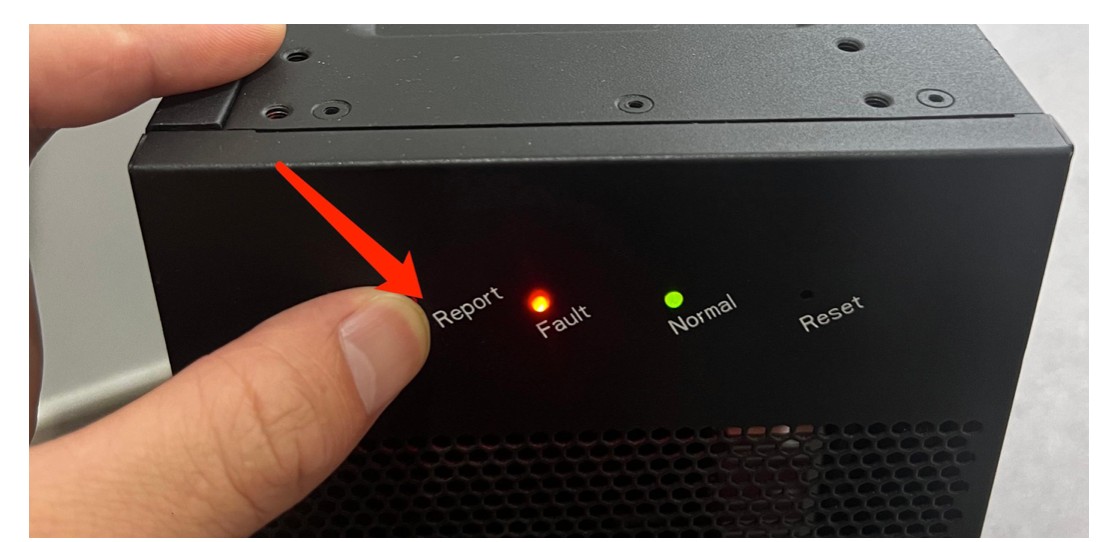
Press and hold the front panel "IP Report" until both the Operation and the Fault
lights come on.
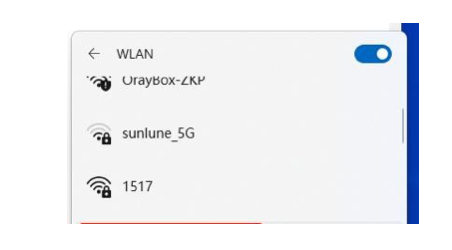
Find "Jasminer-ap..." on your computer and connect to that WiFi,
Default password: 12345678
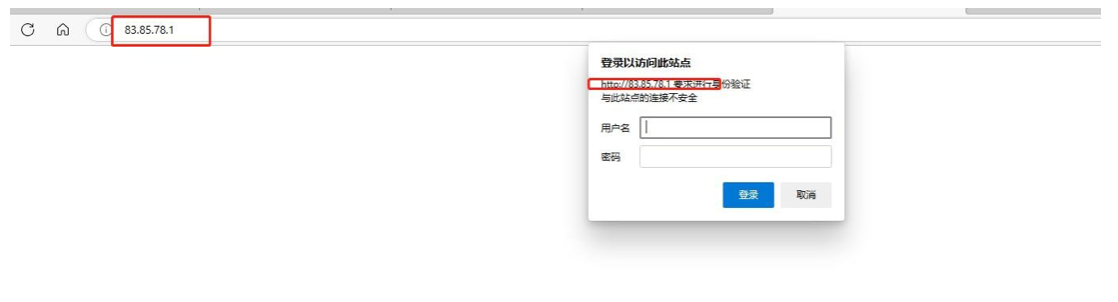
After connecting to the Wi-Fi of the Jasminer machine, open your web browser, enter the address "83.85.78.1" and click Enter and Login to reach the backend console
User name: root
Password: root
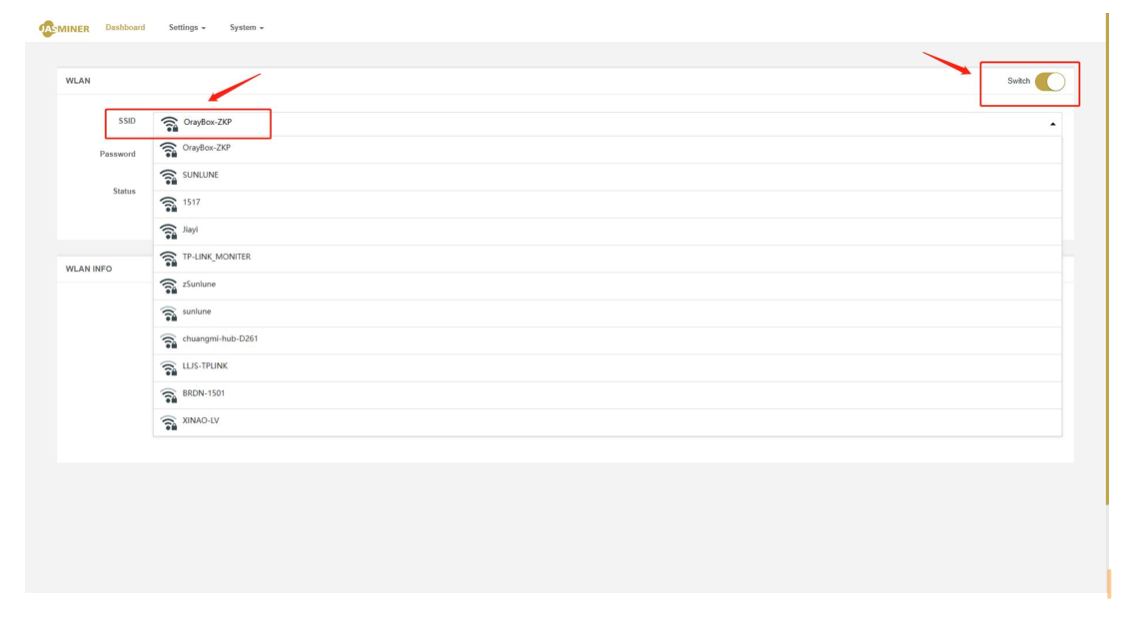
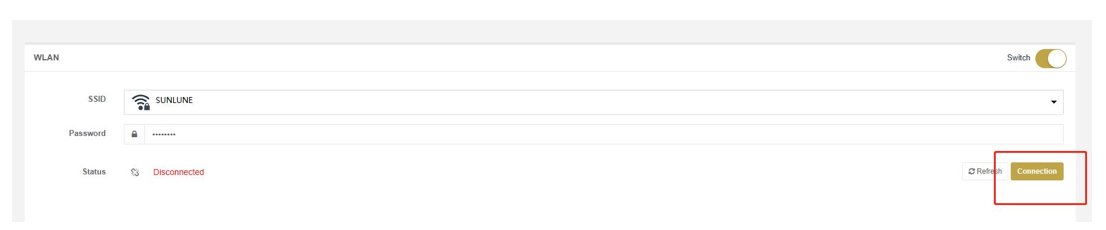
Configuring Wi-Fi, enter Setting →WLAN your shared network.
→Switch, click Connection to connect to
Connect the computer to the same network as the mining machine, go back to
the ordinary connection and scan for the machine's IP address.
Other settings
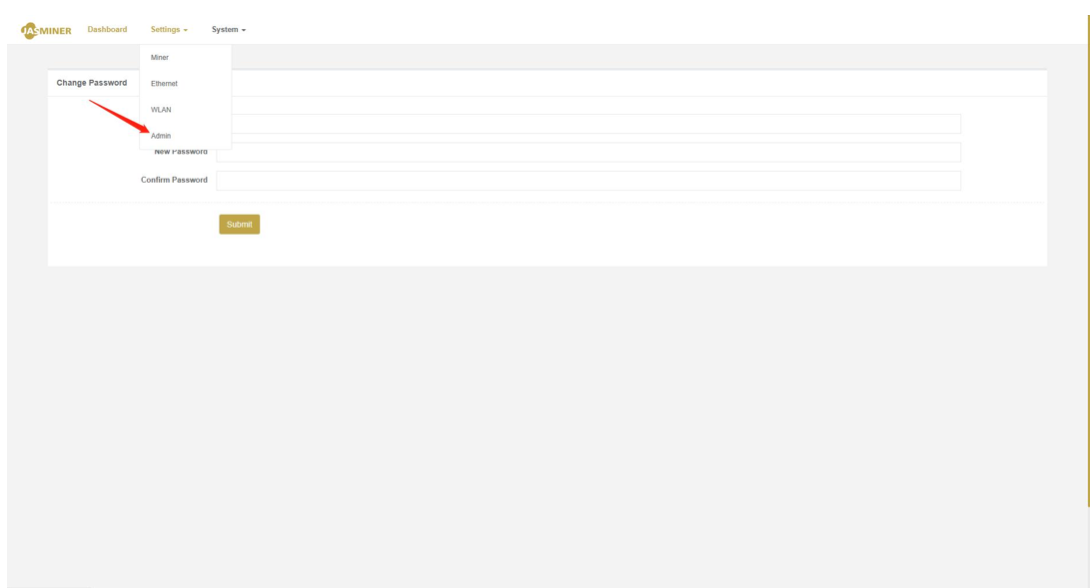
Changing the login password: you need to change the login name and
password information, select the Setting□Admin "configuration item. Default login
Default name: root
Default password: root
Click "UPDATE" for it to take effect.
Viewing the log: To see information about the system's operation, you can select the "Log"
option
Upgrading the system firmware: select the "Upgrade" option, choose the firmware that needs to be upgraded, and click "Upload image" to complete the upgrade operation;
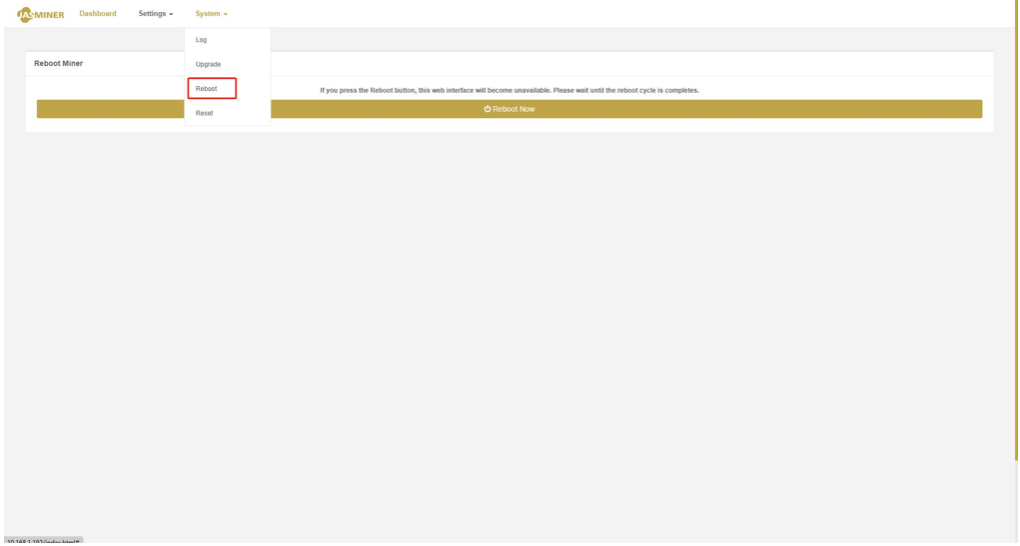
Restart the machine: select "Reboot" and click "Reboot Now";
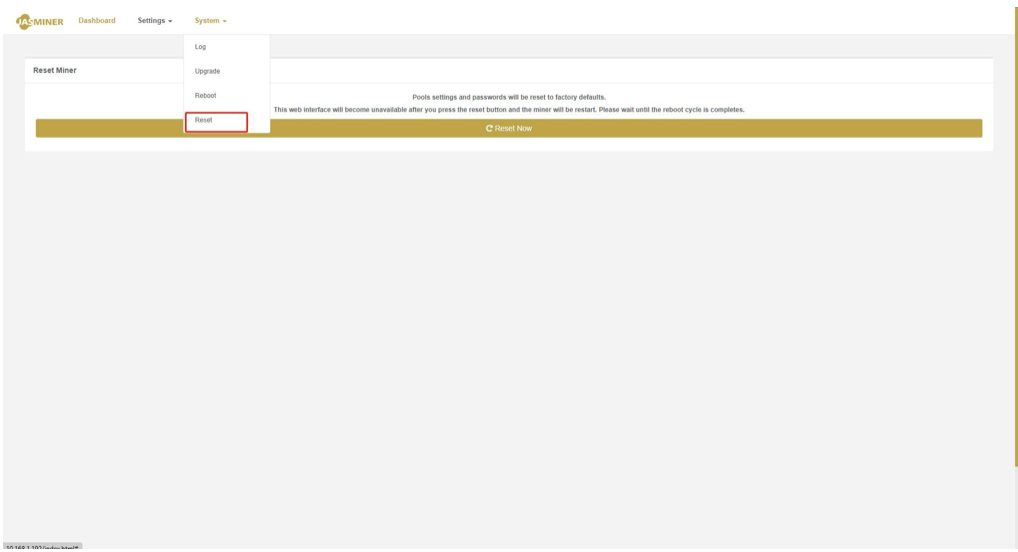
The machine restores its factory settings: select "Reset" and click "Reset Now";