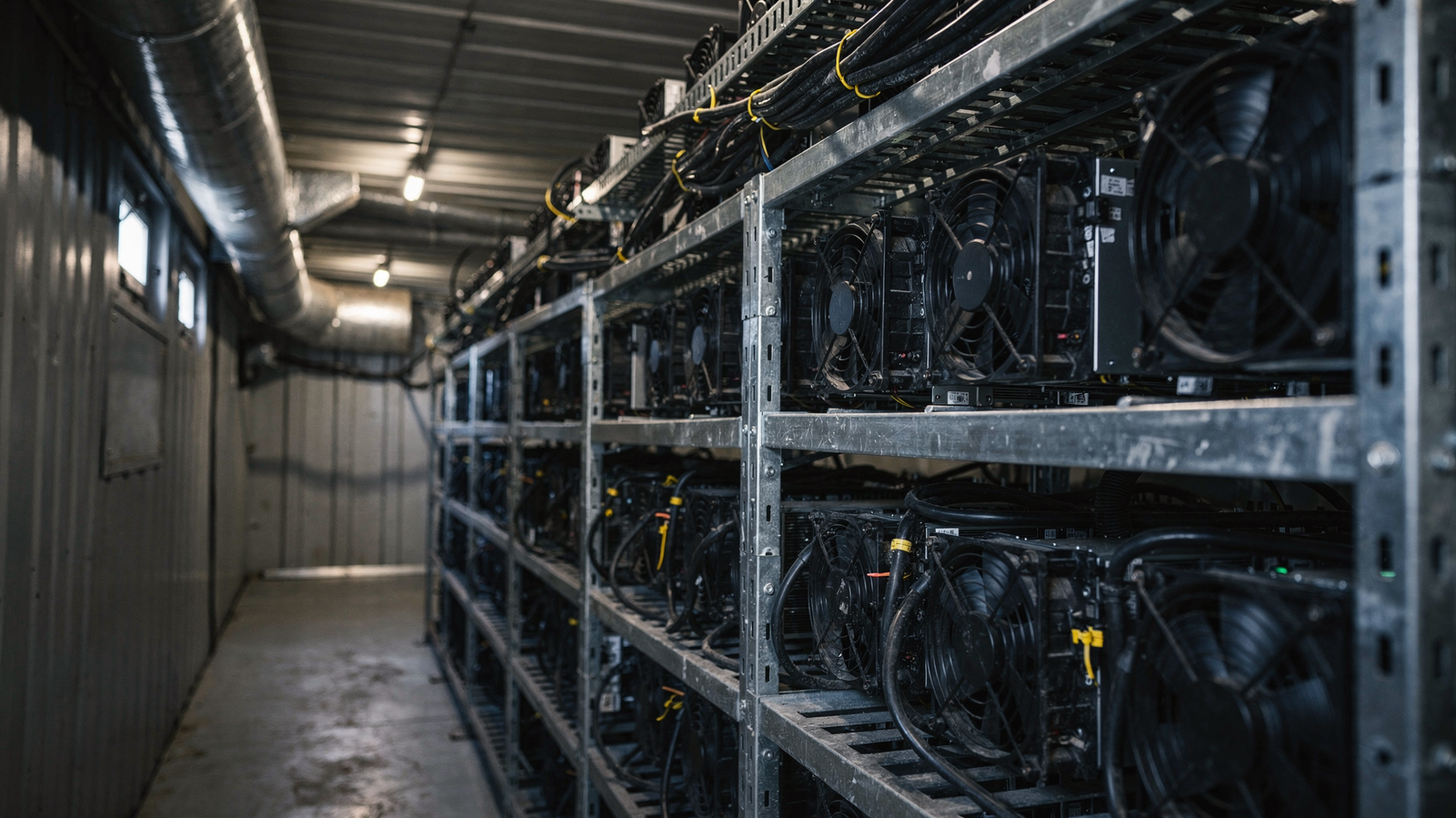
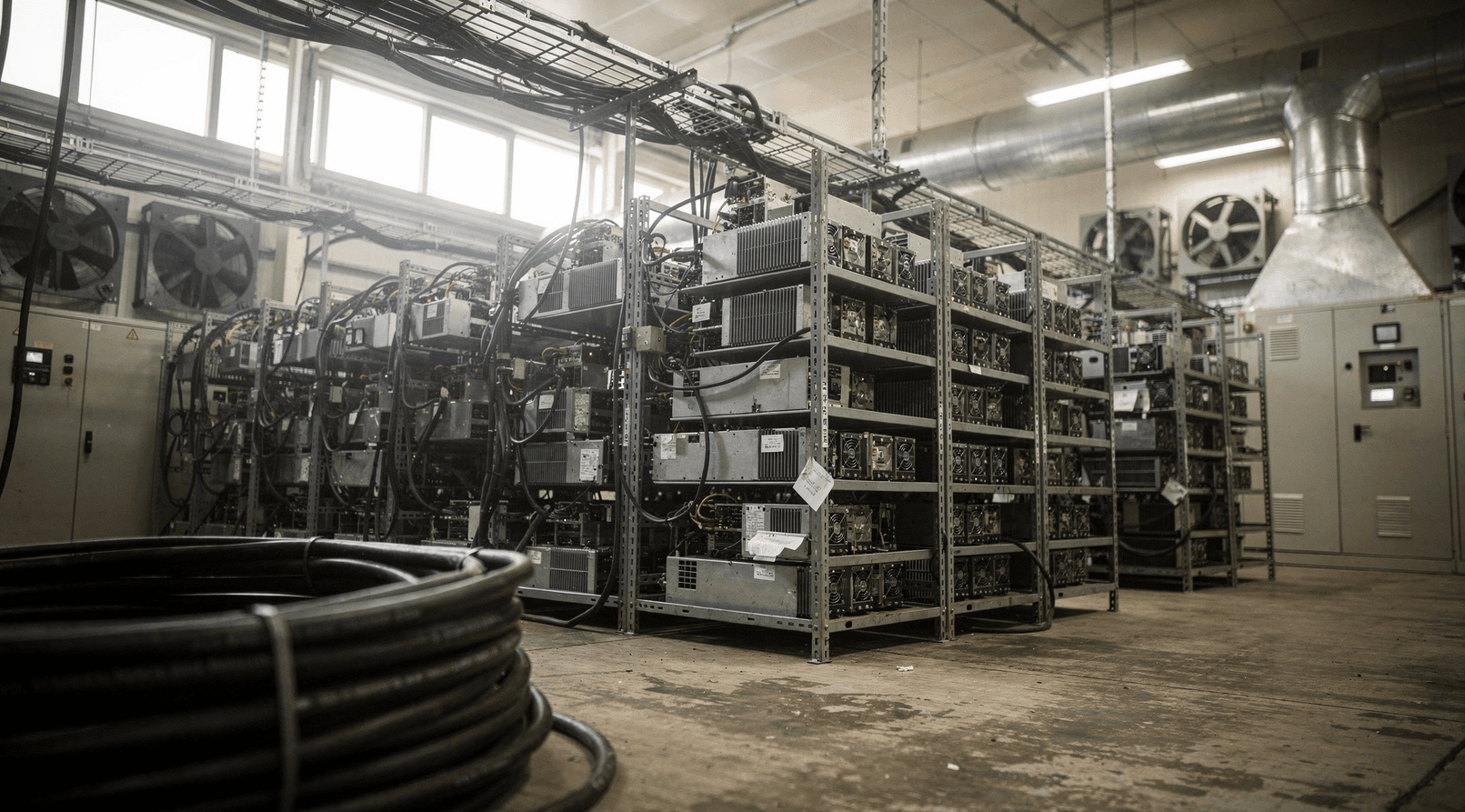
Bitmain Antminer S21 XP- Miner Installation
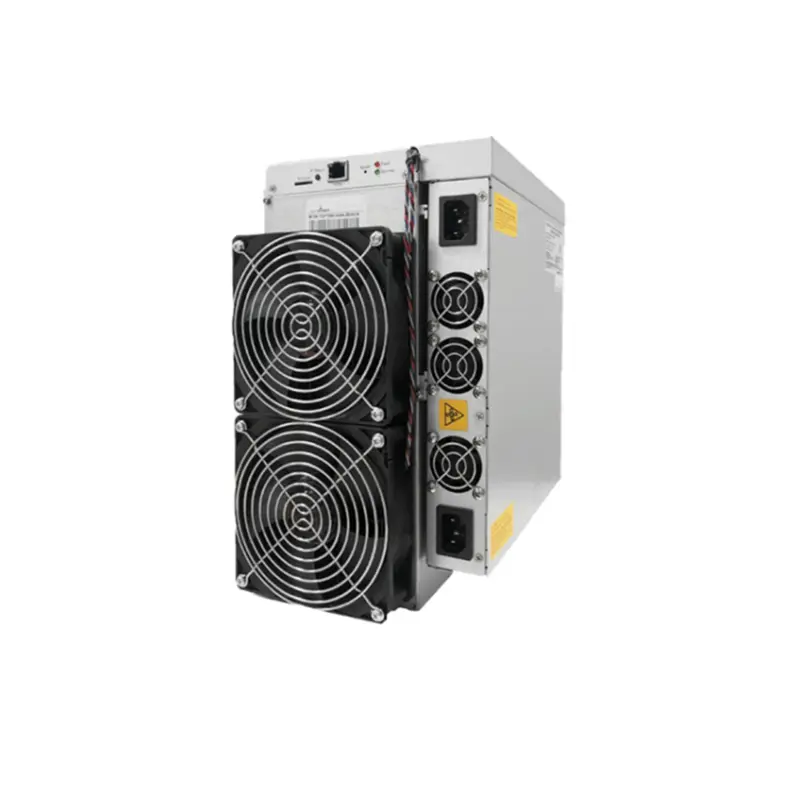
S21 XP Miner Installation
The S21 XP Miner is Bitmain's newest version in the 21 Miner series. The APW171215 power supply is part of the S21 XP Miner. All S21 XP Miners are tested and configured before shipping to make setup easy.
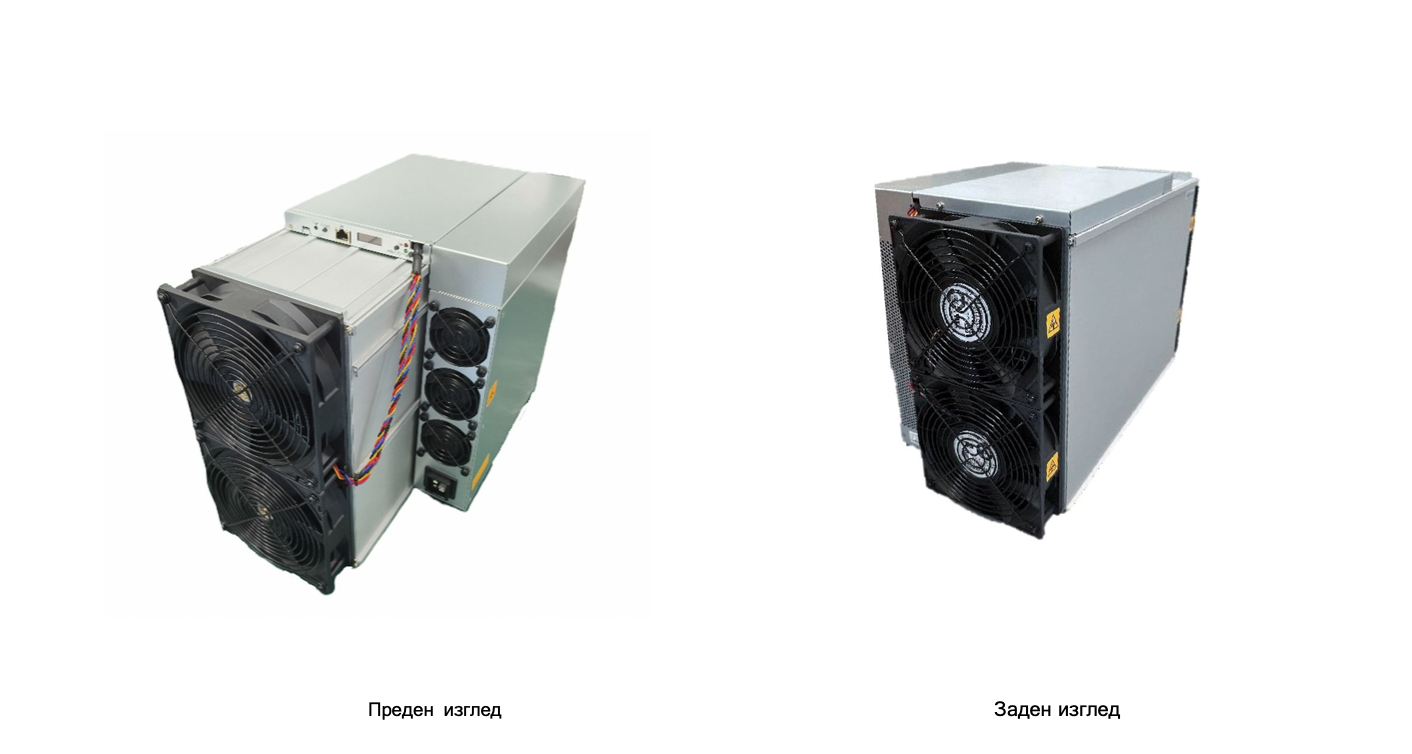
Caution:
Please refer to the layout above when putting your goods into use, in case of a fault.
The equipment must be connected to an earthed socket. The socket must be installed near the equipment and be easily accessible.
The equipment has two power inputs, and it can only run when both power connectors are plugged in at the same time. When the equipment is switched off, remember to disconnect every power input. Do NOT remove the screws and cables fastened to the product. Do NOT PRESS the metal button on the cover.
Please note that the actual server takes precedence.
S21 XP Miner Components
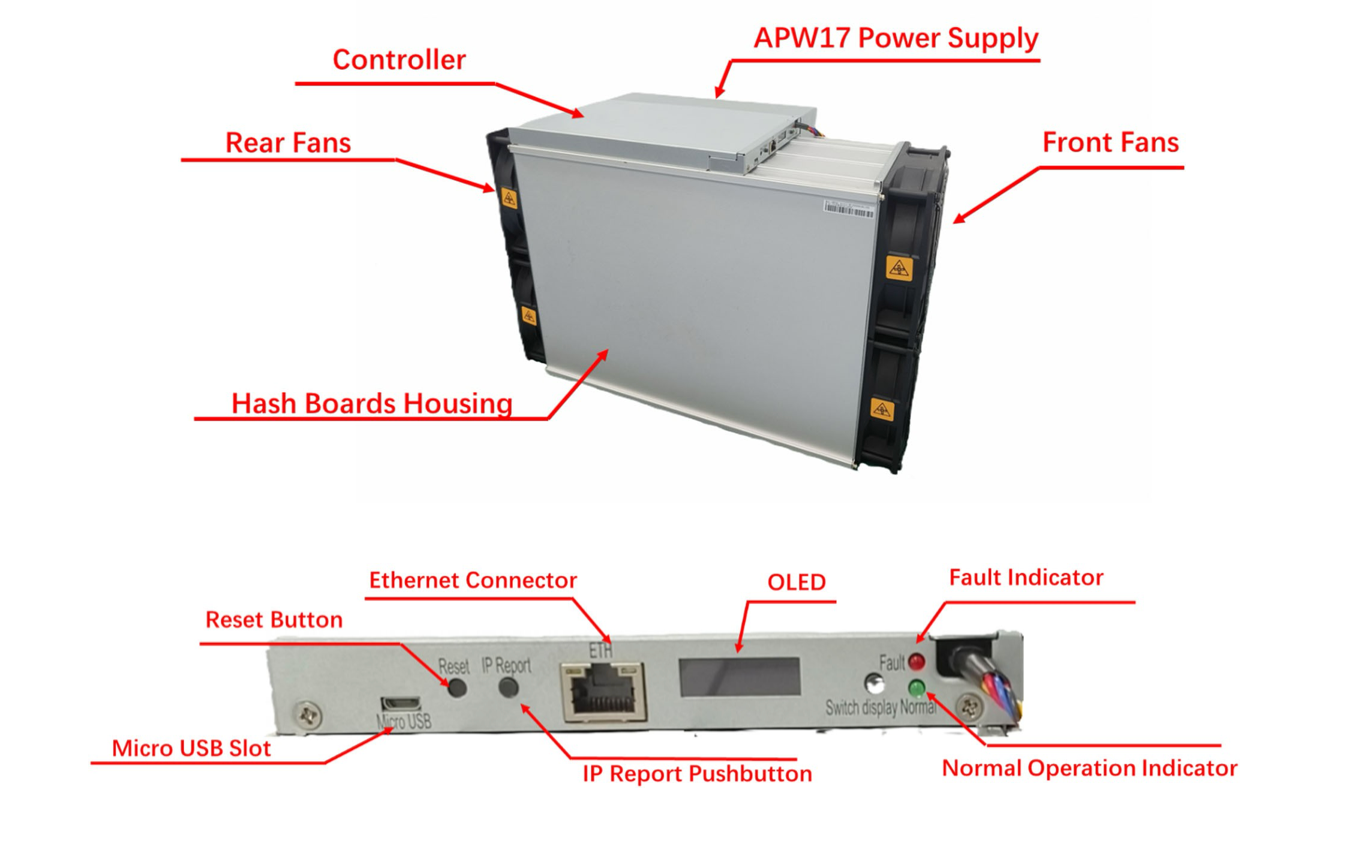
The main components and the control front panel of the S21 XP Miners are shown in the figure below:
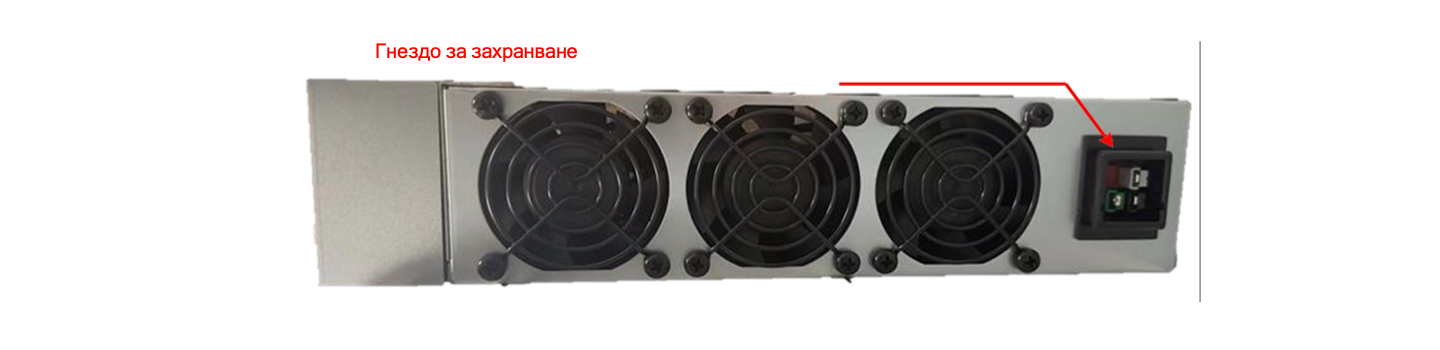
APW171215 power supply:
Note:
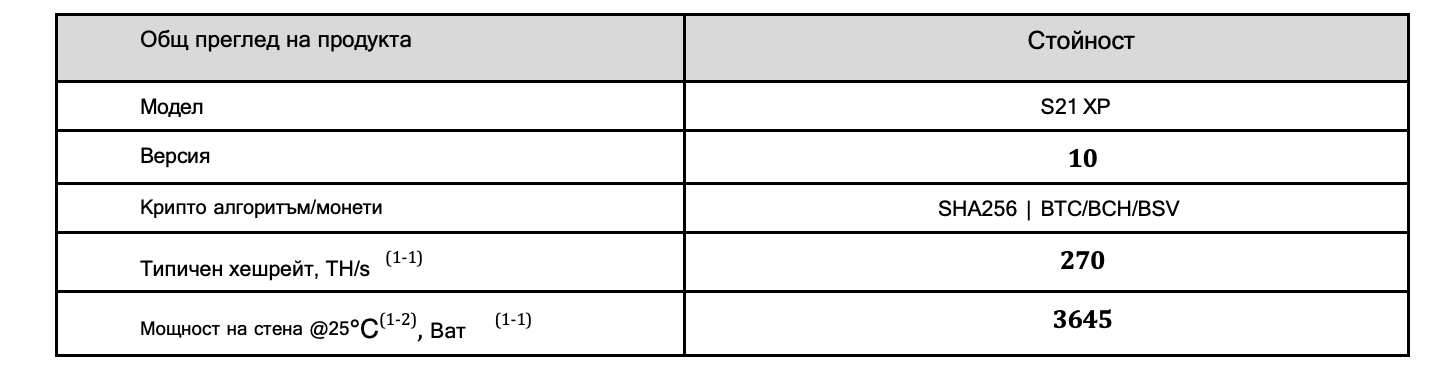
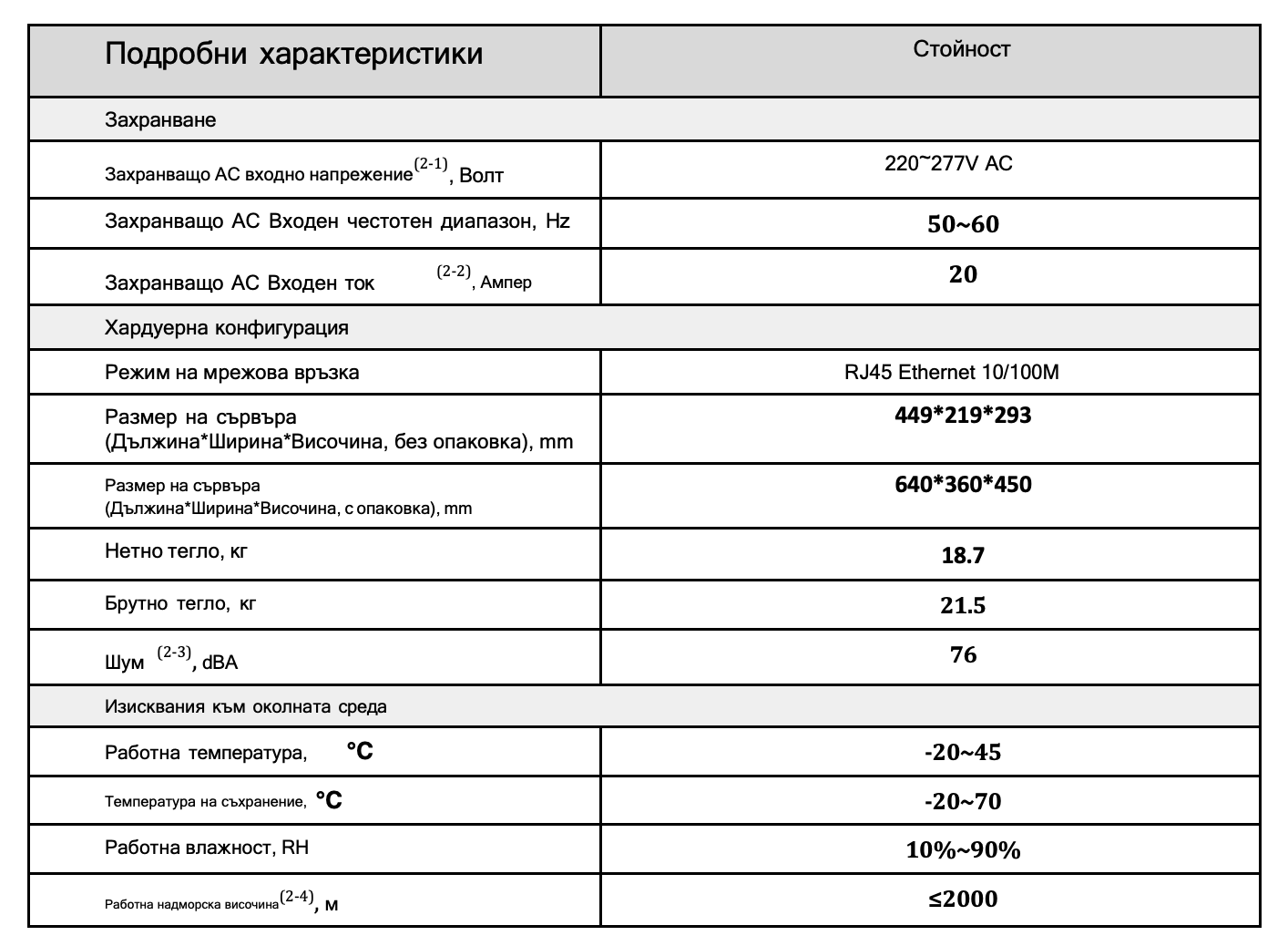
The APW171215 power supply is part of the S21 X P server. For detailed parameters, please see the specifications below.
One ANTWIRE-20SP power cable is required and must be connected to the PDU.
Specification
Model: S21 XP
Version: 10
Notes:
(1-1) The hashrate value, the wall power and the wall power efficiency are typical values. The actual hashrate
value varies by ±3%, and the actual wall power and wall power efficiency vary by ±5%.
(1-2) Inlet air temperature.
(2-1) Caution: an incorrect input voltage may damage the server d. (2-2) Single-phase AC input 20A.
(2-3) Maximum condition: the fan is running at maximum speed (revolutions per minute).
(2-4) When the server is used at an altitude of 900 m to 2000 m, the highest operating temperature drops by 1 ℃
for every increase of 300 m.
Setting up the server
To set up the server:
The IPReporter.zip file is supported only by Microsoft Windows.
Go to the following site:
https://file12.bitmain.com/shop-product/firmware/IP%20Reporter.zip
Download the following file: IPReporter.zip.
Right-click IPReporter.exe and run it as administrator.
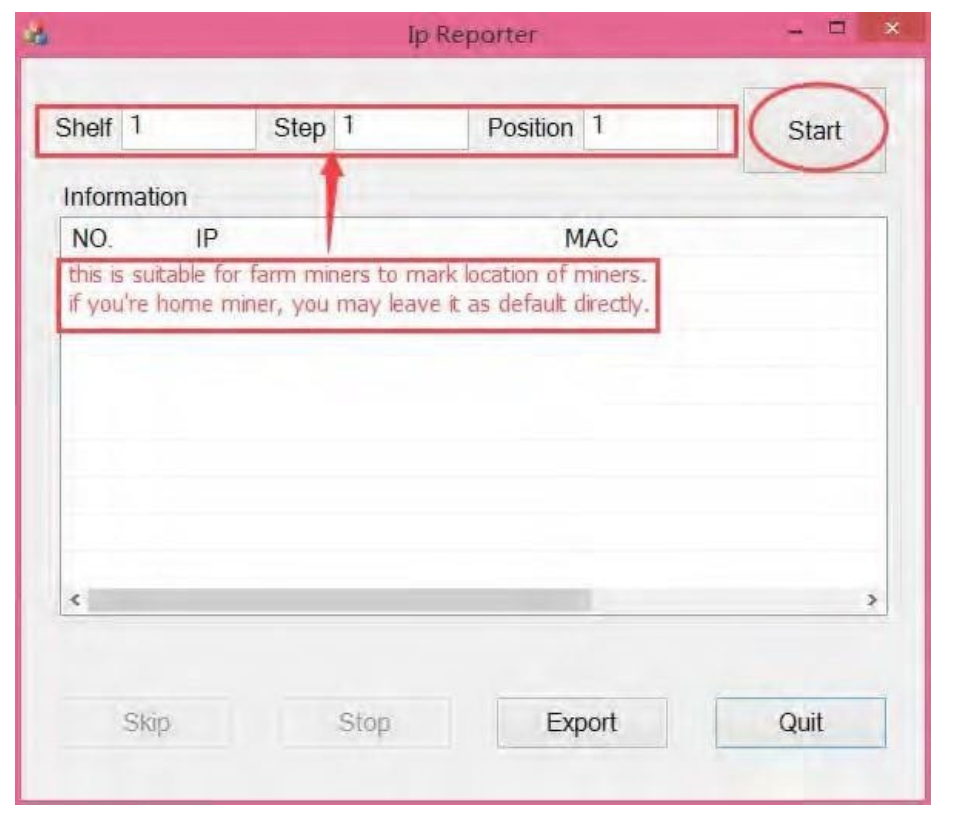
Select one of the following options:
Shelf, Step, Position – suitable for farm servers, for marking the location of the servers
Default – suitable for home servers.
Click Start
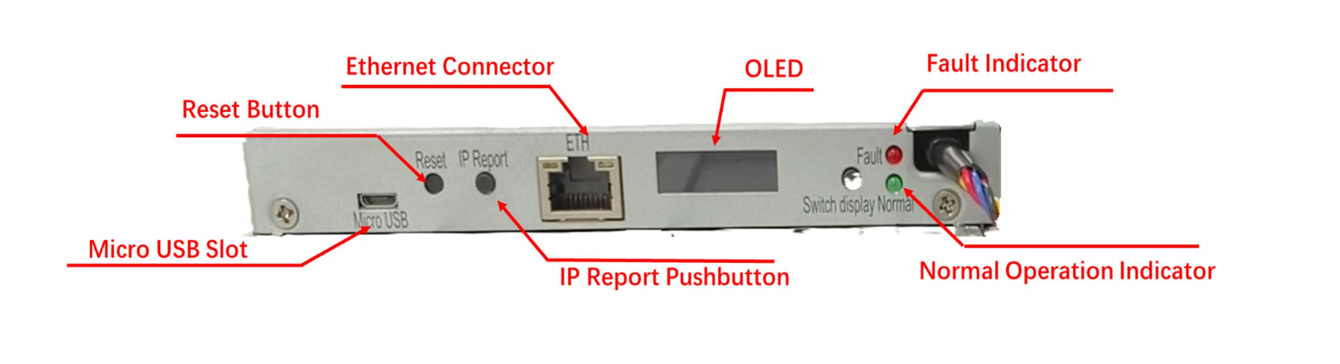
On the controller board, click the IP Report button. Hold it down until it beeps (about 5 seconds).
The IP address will be shown in a window on your computer screen.
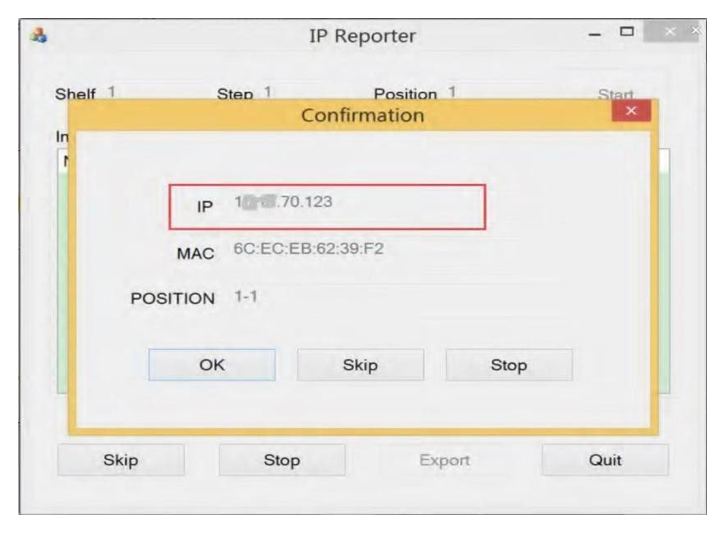
In your web browser, enter the IP address provided.
Go on to log in using root for both the username and the password.
In the Protocol section you can set a static IP address (optional).
Enter the IP address, the subnet mask, the gateway and the DNS server.
Click “Save”.
Click https://support.bitmain.com/hc/en-us/articles/360018950053 to learn more about the gateway and the DNS server
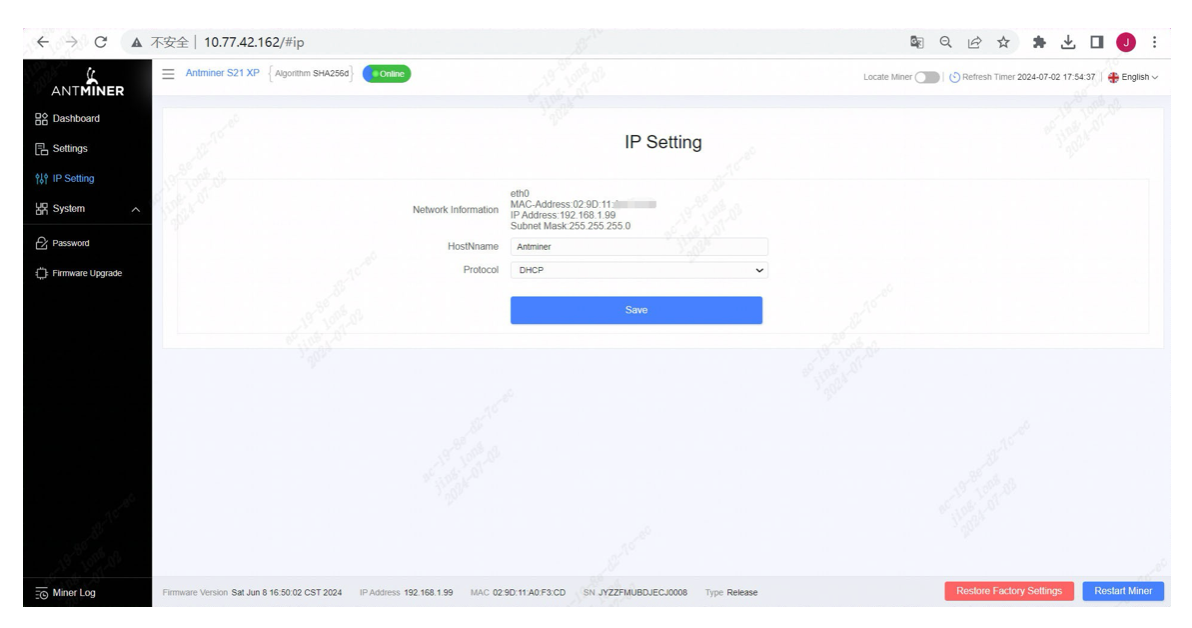
Configuring the Miner
Setting up the pool
To configure the server:
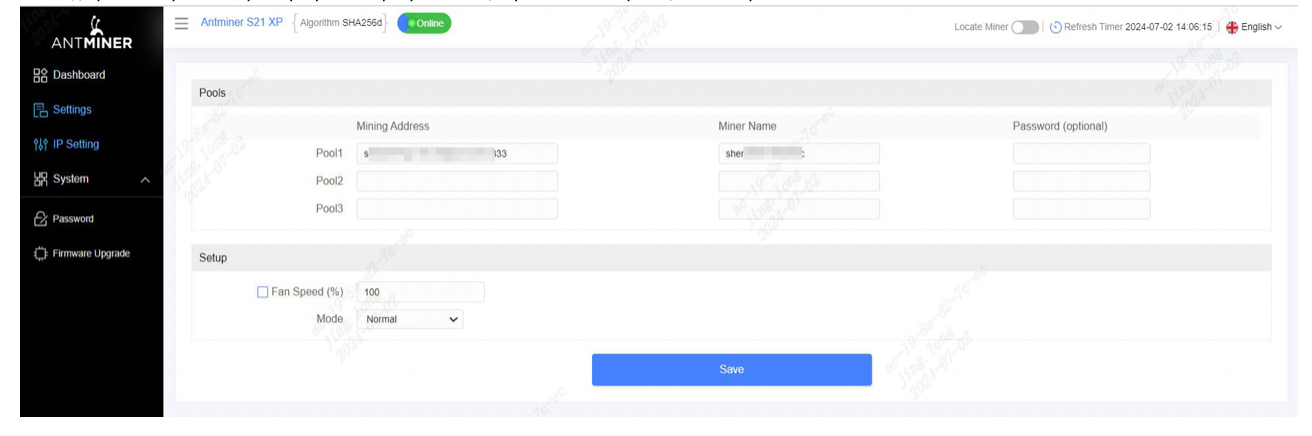
Click Settings as shown below.
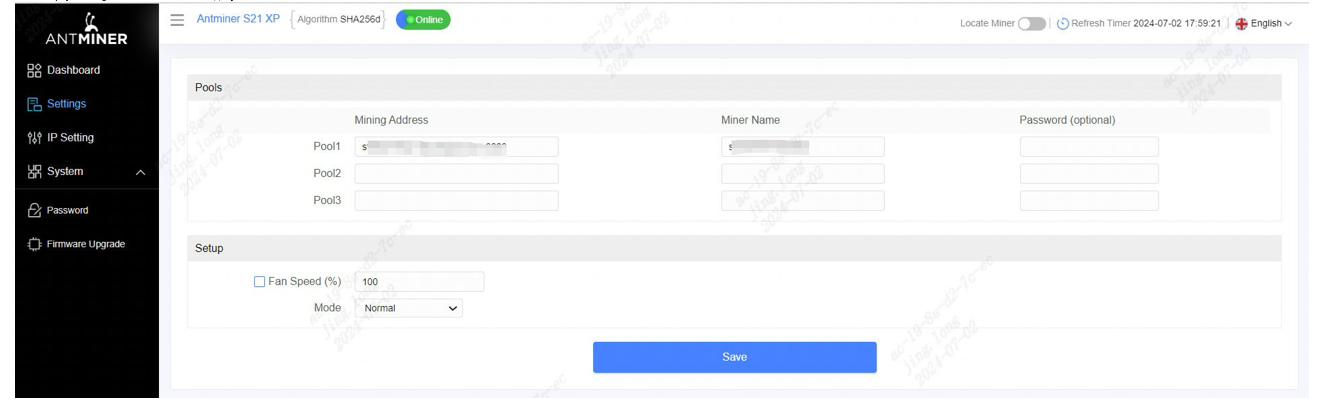
Set the options according to the following table:
The fan speed percentage can be adjusted, but we recommend keeping the default setting. The server will adjust the fan speed automatically if no fan speed percentage has been selected yet.
The S21 XP server has two operating modes: Normal mode and Sleep mode. The server enters
sleep mode when the control board is powered while the hashboards are not.
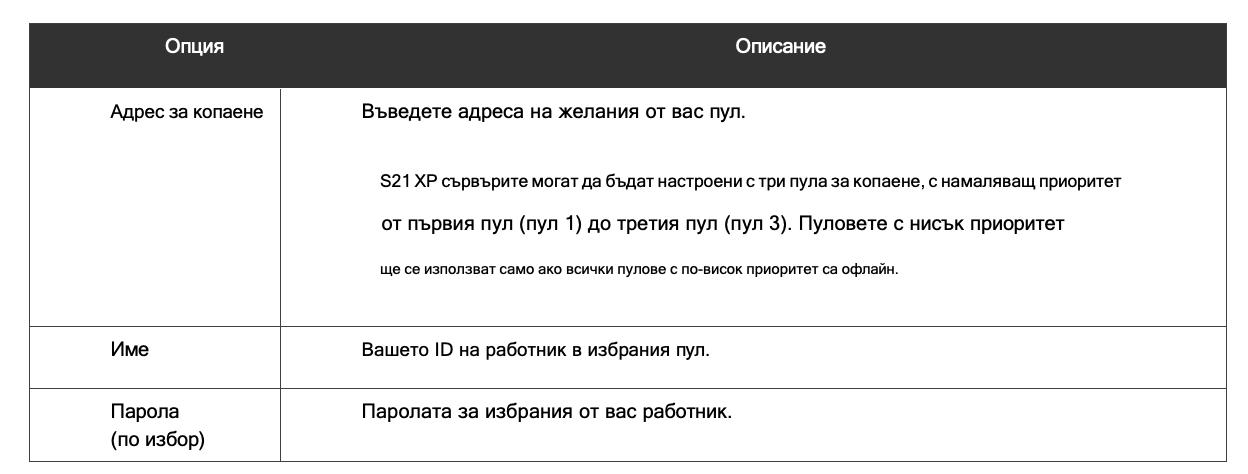
Click Save once you have finished configuring.
Monitoring your server
To check the operating status of your server:
Click the dashboard marked below to check the server status (the S21 XP 270T is used as an example).
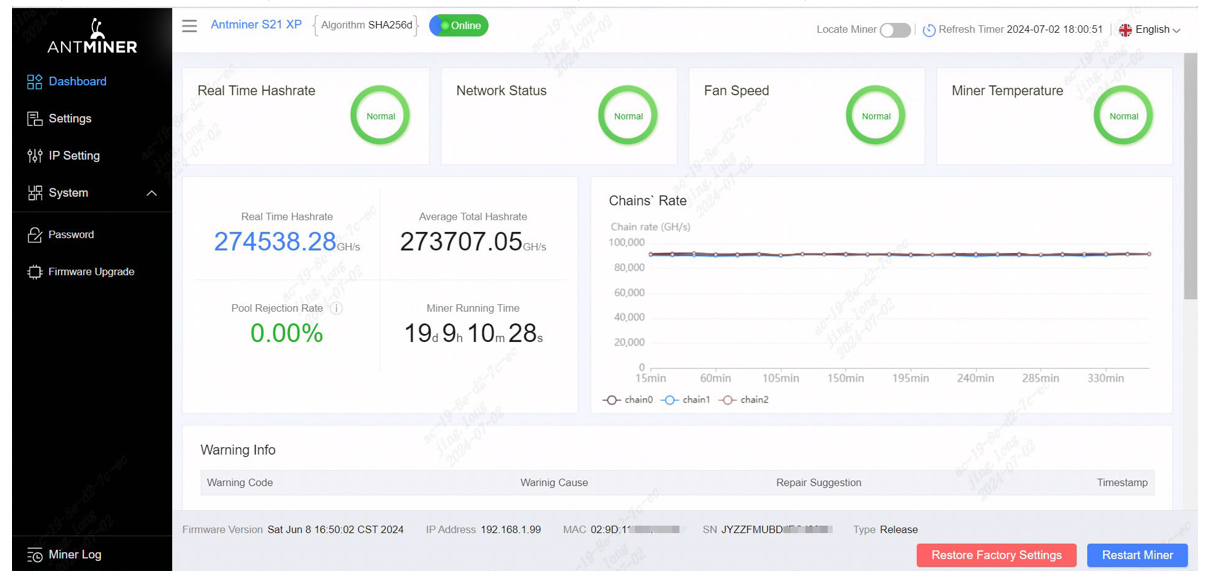
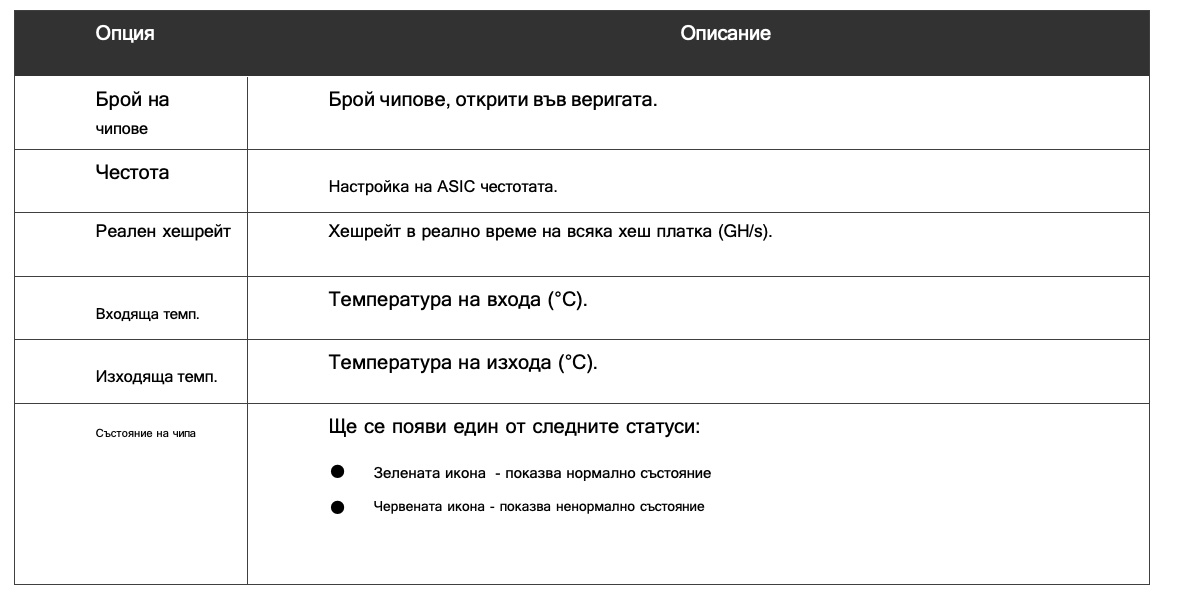
Monitor your Miner according to the descriptions in the following table:
Administering Your Server
Checking Your Firmware Version
To check your firmware version:
Log in to your server's backend and find the firmware version at the bottom.
Firmware version shows the date of the firmware your server is running. In the examples below, the server is running firmware
version 20240608.
Upgrading Your System
Make sure the S21 XP server stays powered throughout the upgrade process. If the power is cut before the upgrade has finished, you will have to return it to Bitmain for repair.
To upgrade the miner's firmware:
In System, click Firmware Upgrade.
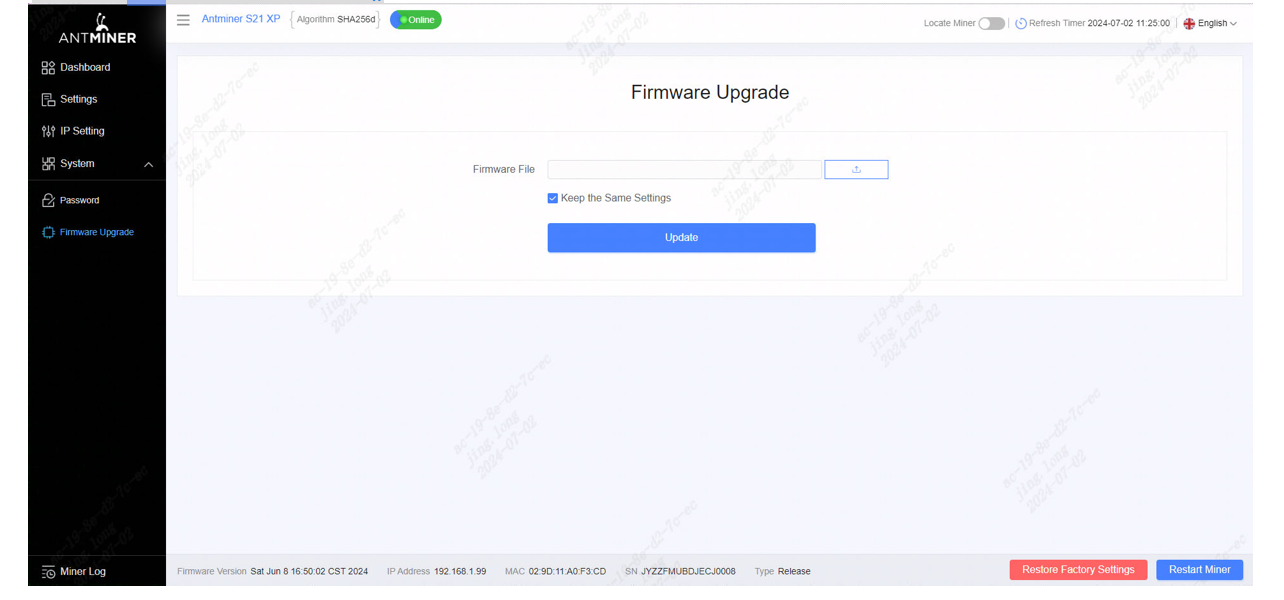
To Keep the Settings:
Select “keep settings” to keep your current settings (the default).
Clear the “keep settings” checkbox to return the server to its default settings.
Click the button and navigate to the upgrade file. Select the upgrade file, then click Update.
When the upgrade is finished, restart the server and it will go to the settings page.
Changing Your Password
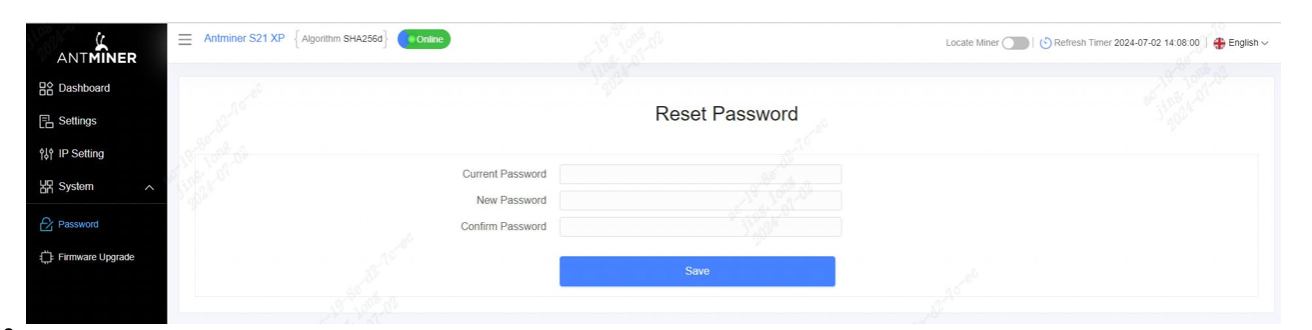
To change your login password:
In System, click the Password tab.
Restoring the Factory Settings
To restore your factory settings
Turn the server on and let it run for 5 minutes.
On the front panel of the controller, press and hold the Reset button for 10 seconds
Resetting the server will restart it and restore its default settings. The red LED will automatically blink once
every 15 seconds if the reset was successful.
Environmental Requirements
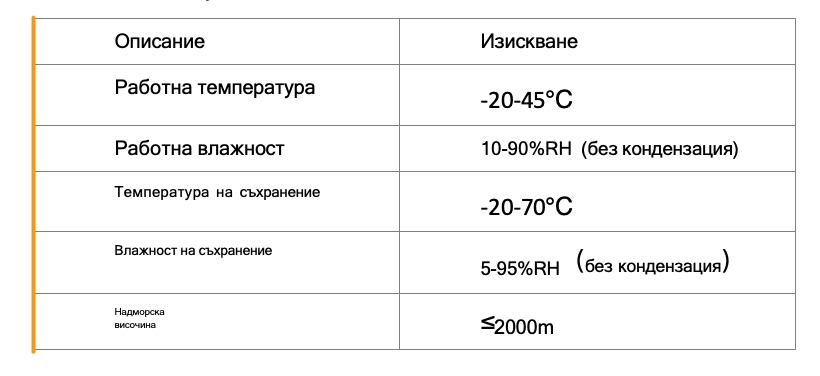
Please use your server in line with the following requirements
Basic environmental requirements:
Climatic conditions:
Requirements for the site of the server room:
Please keep the server room away from sources of industrial pollution:
For heavy pollution sources such as smelting plants and coal mines, the distance must be more than 5 km.
For moderate pollution sources such as chemical, rubber and electroplating industries, the distance must be more than 3,7 km.
For light pollution sources such as food factories and leather processing factories, the distance must be more than 2 km. If this is unavoidable, the site must be chosen in the prevailing multi-year wind direction from the pollution source. Please do not site your facility within 3,7 km of the sea shore or a salt lake. If this is unavoidable, it must be built as airtight as possible and equipped with air conditioning for cooling.
Electromagnetic Environmental Conditions:
Please keep your site away from transformers, high-voltage cables, transmission lines and high-current equipment, for example,
there must be no high-power AC transformers (>10KA) within 20 metres and no high-voltage power lines within 50 metres. Please keep your site away from high-power radio transmitters, for example, there must be no high-power radio transmitters (>1500W) within 100 metres.
Other environmental requirements :
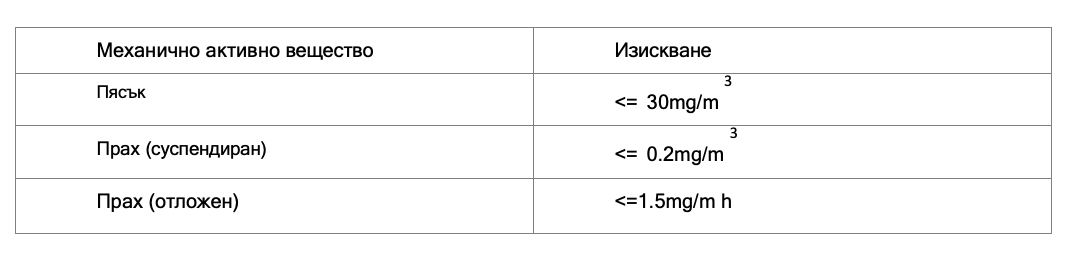
The server room must be free of explosive, conductive, magnetically conductive and corrosive dust. The requirements
for mechanically active substances are shown below:
Requirements for mechanically active substances
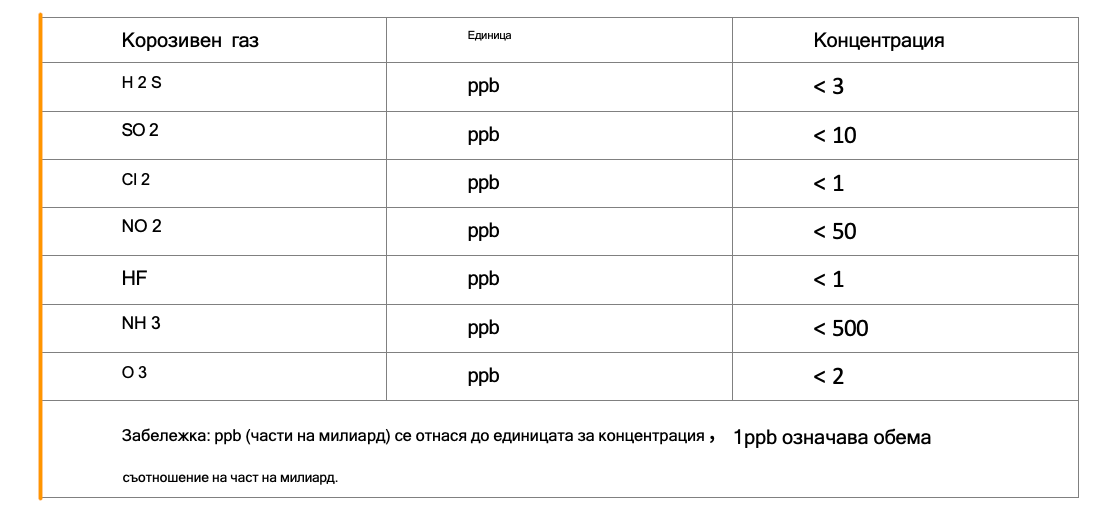
Requirements for corrosive gas
This equipment has been tested and found to comply with the limits for a Class A digital device, pursuant to part 15 of the FCC Rules. These limits are designed to provide reasonable protection against harmful interference when the equipment is operated in a commercial environment. This equipment generates, uses and can radiate radio frequency energy and, if not installed and used in accordance with the user guide, may cause harmful interference to radio communications. Operation of this equipment in a residential area is likely to cause harmful interference, in which case the user will be required to correct the interference at his own expense.